

AirPlay is supposed to feel like magic. Tap a button, pick a screen, and boom. Your iPhone, iPad, or Mac shows up on the big display. But sometimes the magic wand turns into a soggy noodle. AirPlay refuses to connect. Screen Mirroring spins forever. Your Mac is missing. Your iPad acts shy. Do not worry. Most AirPlay problems come from simple WiFi, settings, or discovery issues.
TLDR: If AirPlay is not connecting, make sure all devices are on the same WiFi network, close to the router, and updated. Restart the iPhone, iPad, Mac, Apple TV, smart TV, and router. Turn AirPlay off and on, check Screen Mirroring settings, and disable VPNs or guest WiFi. If it still fails, reset network settings or check firewall and sharing options on Mac.
Table of Contents
First, What Does AirPlay Need?
AirPlay is Apple’s wireless streaming system. It lets you send video, music, photos, or your whole screen from one Apple device to another screen or speaker.
It works with:
- iPhone
- iPad
- Mac
- Apple TV
- AirPlay compatible smart TVs
- HomePod and AirPlay speakers
For AirPlay to behave, your devices must be able to “see” each other. That usually means they need to be on the same WiFi network. They also need Bluetooth, Bonjour networking, and good signal strength. Sounds fancy. But the fixes are not fancy.

1. Check the Same WiFi Network
This is the big one. AirPlay often fails because your devices are not on the same network.
Your iPhone may be on regular WiFi. Your Mac may be on a guest network. Your TV may be on a 2.4 GHz network while your iPad is on 5 GHz. Sometimes that is fine. Sometimes the router treats them like strangers at a party.
Do this:
- Open Settings on iPhone or iPad.
- Tap WiFi.
- Check the network name.
- On Mac, click the WiFi icon in the menu bar.
- Make sure the network name matches.
If you use an Apple TV or smart TV, check its network too. A TV on Ethernet can still work, but the router must allow local devices to talk to each other.
Tip: Avoid guest WiFi. Guest networks often block AirPlay on purpose. They are polite little bouncers.
2. Restart Everything
Yes, it sounds boring. Yes, it works.
Restart your:
- iPhone
- iPad
- Mac
- Apple TV or smart TV
- WiFi router
AirPlay depends on tiny background services. Sometimes one of them gets stuck. A restart gives everything a fresh cup of coffee.
For your router, unplug it for about 30 seconds. Plug it back in. Wait until WiFi is fully back. Then try AirPlay again.
3. Move Closer to the Router
AirPlay can be picky when WiFi is weak. Screen Mirroring needs more bandwidth than simple music streaming. If your video freezes, stutters, or refuses to start, the signal may be too weak.
Try moving:
- Your iPhone or iPad closer to the router
- Your Mac closer to the router
- Your Apple TV or smart TV closer to the router
If your TV is far away, consider using Ethernet for the Apple TV. Wired connections are less dramatic. They do not care about walls, microwaves, or your neighbor’s router named “FBI Van.”
4. Turn WiFi and Bluetooth Off and On
AirPlay mostly uses WiFi. But Bluetooth can help devices discover each other. So toggle both.
On iPhone or iPad:
- Open Settings.
- Tap WiFi and turn it off.
- Wait 10 seconds.
- Turn WiFi back on.
- Do the same for Bluetooth.
On Mac:
- Click the Control Center icon.
- Turn WiFi off and on.
- Turn Bluetooth off and on.
Now try Screen Mirroring again.
5. Make Sure AirPlay Is Enabled
If you want to AirPlay to a Mac, Apple TV, or smart TV, that receiving device must allow it.
On Mac:
- Open System Settings.
- Go to General.
- Click AirDrop & Handoff.
- Turn on AirPlay Receiver.
You can also choose who can AirPlay to the Mac. Pick Current User, Anyone on the Same Network, or Everyone. For testing, choose a broader option. You can tighten it later.
On Apple TV:
- Open Settings.
- Go to AirPlay and HomeKit.
- Make sure AirPlay is on.
On smart TVs, look for AirPlay settings in the TV menu. Some brands hide it like treasure.

6. Use the Correct Screen Mirroring Button
Sometimes people tap the wrong icon. No shame. Apple uses a lot of tiny symbols.
To mirror your iPhone or iPad:
- Open Control Center.
- Tap Screen Mirroring.
- Choose your Mac, Apple TV, or smart TV.
The Screen Mirroring icon looks like two overlapping rectangles.
To AirPlay a video from an app:
- Open the video.
- Tap the AirPlay icon.
- Choose your device.
Some apps block AirPlay or limit it. This can happen with sports apps, streaming apps, or apps with strict content rules. If one app fails, test with the Photos app or Apple TV app.
7. Update iOS, iPadOS, macOS, and TV Software
Old software can break AirPlay. New devices may not play nicely with old systems. It is like asking a modern iPhone to explain TikTok to a 2009 laptop.
Update iPhone or iPad:
- Open Settings.
- Tap General.
- Tap Software Update.
Update Mac:
- Open System Settings.
- Go to General.
- Click Software Update.
Update Apple TV:
- Open Settings.
- Go to System.
- Select Software Updates.
Also update your smart TV firmware. Yes, TV updates are slow. Make a snack.
8. Turn Off VPNs and Security Apps
VPNs are great for privacy. But they can make AirPlay confused. A VPN may route traffic away from your local network. Then your iPhone cannot find your Mac or TV.
Turn off:
- VPN apps
- Private relay tools
- Ad blockers with network filters
- Firewall apps
- Security suites
Try AirPlay again. If it works, the VPN or filter was the grumpy gatekeeper.
9. Check Mac Firewall Settings
If AirPlay to Mac is not working, your Mac firewall may be blocking connections.
Check this:
- Open System Settings.
- Go to Network.
- Click Firewall.
- Click Options, if shown.
- Make sure incoming connections are not blocked.
Do not turn off security forever. Just test. If AirPlay works with the firewall relaxed, adjust the rules instead of leaving the door wide open.
10. Forget the WiFi Network and Join Again
Your device may have a bad saved WiFi profile. It happens. Forgetting the network can clear weird settings.
On iPhone or iPad:
- Open Settings.
- Tap WiFi.
- Tap the info button next to your network.
- Tap Forget This Network.
- Join again with the password.
On Mac:
- Open System Settings.
- Go to WiFi.
- Click Details next to the network.
- Choose Forget This Network.
- Reconnect.
11. Reset Network Settings on iPhone or iPad
If nothing works, try a network reset. This does not erase your photos or apps. But it does remove saved WiFi networks, VPN settings, and cellular network settings.
On iPhone or iPad:
- Open Settings.
- Tap General.
- Tap Transfer or Reset iPhone or Transfer or Reset iPad.
- Tap Reset.
- Choose Reset Network Settings.
After the restart, join WiFi again. Then test AirPlay.
12. Check Router Settings
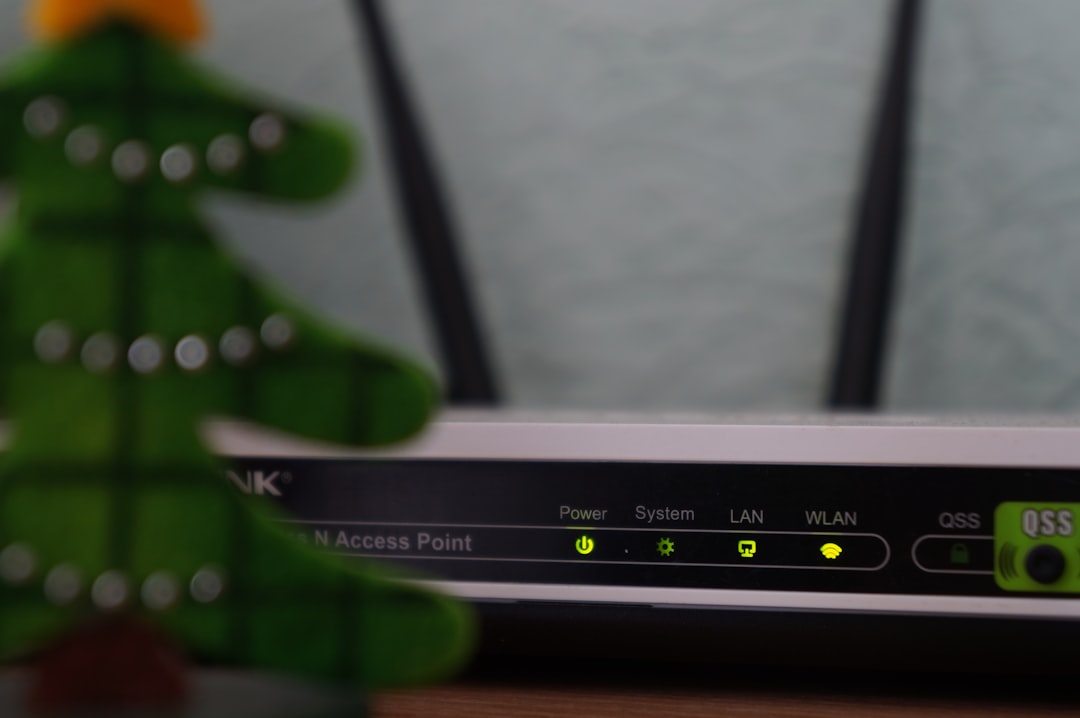
Some routers block device discovery. AirPlay needs local network discovery to work.
Look for settings like:
- AP isolation
- Client isolation
- Guest network isolation
- Multicast filtering
- Bonjour blocking
Turn off isolation for your main network. Enable multicast or Bonjour if your router has those options.
If you use mesh WiFi, make sure all nodes are updated. Also make sure devices are not stuck on different isolated bands.
13. If AirPlay Connects but Lags
Connection is only half the battle. Lag is the other half. If the screen mirrors but looks choppy, try these fixes:
- Move closer to the router.
- Stop large downloads.
- Close unused apps.
- Restart the streaming app.
- Use 5 GHz WiFi if possible.
- Use Ethernet for Apple TV.
- Lower video quality in the app.
Screen Mirroring is heavy. It sends your display in real time. Your WiFi has to hustle.
14. Quick Fix Checklist
Need the fast version? Run through this list:
- Same WiFi network? Check.
- Guest WiFi avoided? Check.
- WiFi and Bluetooth on? Check.
- Devices restarted? Check.
- AirPlay enabled on receiver? Check.
- VPN off? Check.
- Software updated? Check.
- Router restarted? Check.
- Mac firewall checked? Check.
- Network settings reset if needed? Check.
Final Thoughts
AirPlay problems can feel mysterious. But most of the time, the cause is simple. Your devices are on different networks. The router is blocking discovery. A VPN is getting in the way. Or one device just needs a restart.
Start with the easy fixes. Same WiFi. Restart. Update. Toggle AirPlay. Then move to firewalls, router settings, and network resets.
Once everything is working, AirPlay feels magical again. Your iPhone becomes a remote. Your iPad becomes a presentation machine. Your Mac becomes a big stage. And your screen finally stops playing hide and seek.