

Report a YouTube video by opening the video, selecting the three-dot menu, choosing Report, picking the policy reason, adding details, and submitting it. If the video shows scams, harassment, graphic content, dangerous acts, misinformation, child safety risks, or copyright issues, do not argue in the comments first. Use the report tool so YouTube’s moderation system can review the content with the right context.
TLDR: To report a YouTube video, click or tap the three dots, choose Report, select the closest violation type, add a timestamp or short explanation, and submit. For example, if a video claims “send $20 to get a free iPhone” and links to a fake giveaway page, report it as Spam or misleading. A clear report usually takes under 60 seconds, and adding a timestamp can save reviewers several minutes. If the video threatens someone, targets a child, or encourages real-world harm, report it immediately.
Table of Contents
When Should You Report a YouTube Video?
You should report a video when it appears to break YouTube’s Community Guidelines, legal rules, or basic safety standards. Reporting is not for content you simply dislike. It is for content that may hurt people, mislead viewers, scam users, or violate platform rules.
Common reasons include:
- Harassment or cyberbullying: targeted abuse, threats, humiliation, or doxxing.
- Hate speech: attacks based on race, religion, nationality, gender identity, disability, or similar traits.
- Spam or misleading content: fake giveaways, scam links, impersonation, deceptive thumbnails, or false claims.
- Violent or graphic content: disturbing footage used to shock viewers rather than educate.
- Dangerous acts: harmful challenges, weapon misuse, self-harm encouragement, or risky instructions.
- Sexual content: explicit material, unwanted sexualization, or content involving minors.
- Child safety issues: exploitation, grooming, unsafe child-focused content, or inappropriate comments around minors.

How to Report a YouTube Video on Desktop
Reporting from a computer is usually the easiest method because the options are clearer and there is more room to type details. Honestly, it feels like the desktop version hides fewer buttons than the mobile app.
- Open the video you want to report.
- Look under the video player and click the three-dot menu, often placed near the Save, Share, or Download buttons.
- Select Report from the menu.
- Choose the reason that best fits the problem.
- If YouTube asks for more detail, choose a subcategory.
- Add a timestamp if the violation happens at a specific moment.
- Write a brief explanation if a text box appears.
- Click Submit.
Keep your note short and factual. A good report might say: “At 2:14, the creator tells viewers to send money through a link for a fake prize. The pinned comment repeats the scam.” That is much more useful than “This channel is awful.”
How to Report a YouTube Video on Mobile
The mobile process is similar, but the buttons may be in slightly different places depending on your app version. It drives me crazy that a simple menu can move after an update, but the basic flow stays the same.
- Open the YouTube app and play the video.
- Tap the video or the area near the title to reveal controls.
- Tap the three-dot menu. It may appear near the top right or beside the video title.
- Tap Report.
- Select the most accurate issue.
- Add more information if prompted.
- Tap Submit.
If you cannot find the report button right away, try expanding the description area or tapping the menu beside the title. On some versions, YouTube places reporting options behind a small icon that takes a few extra seconds to find.
Pick the Right Reporting Category
The category matters. It helps YouTube route the report to the right review process. Do not pick the harshest option just to get attention. Pick the most accurate one.
- Spam or misleading: Use this for fake investment pitches, giveaway scams, stolen celebrity endorsements, fake news presented as fact, or repeated clickbait uploads.
- Hateful or abusive: Use this for slurs, threats, targeted harassment, or organized attacks against a person or group.
- Violent or repulsive: Use this for gore, shock footage, animal abuse, or violence shown without proper context.
- Harmful or dangerous acts: Use this for unsafe stunts, bomb-making instructions, self-harm encouragement, or life-threatening challenges.
- Sexual content: Use this for explicit content, non-consensual sexual material, or sexualized content involving young people.
- Child abuse: Use this for any content that appears to exploit, endanger, or sexualize a minor.
How to Report Misleading Videos and Scams
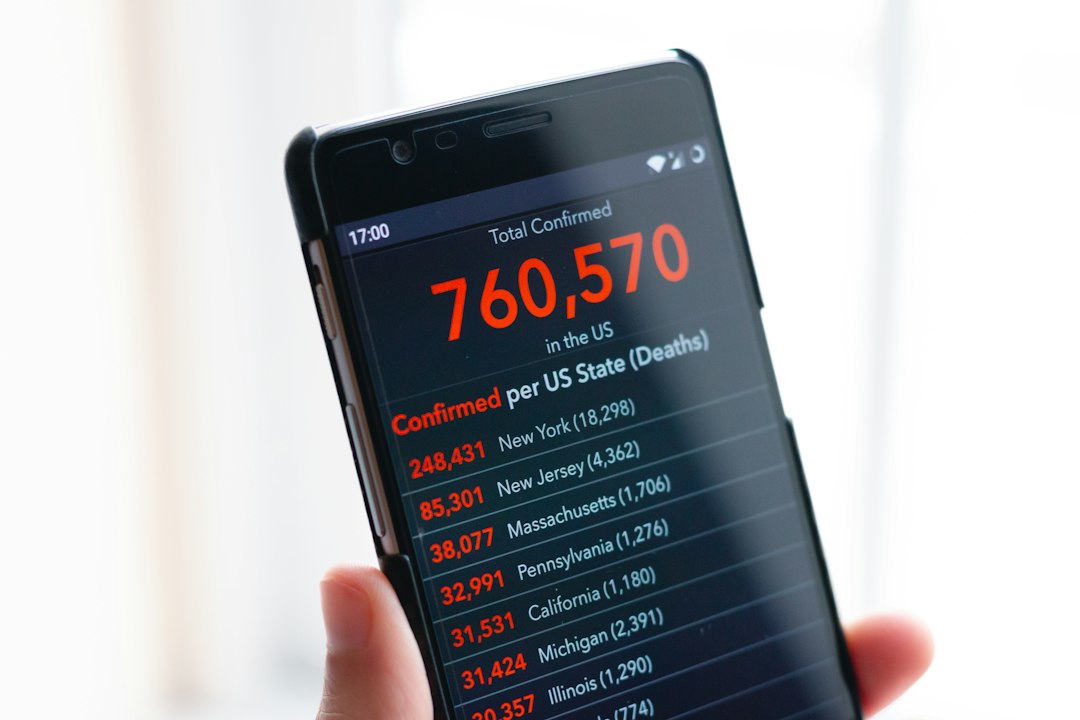
Misleading videos are tricky because they often look polished. A scammer may use a real logo, a copied news clip, or an AI voice that sounds official. Watch for claims that push urgency, money transfers, secret cures, guaranteed profits, or “limited spots” with no proof.
When reporting this type of video, include:
- The exact claim that seems false or deceptive.
- The timestamp where the claim appears.
- The link behavior, such as a suspicious payment page or phishing form.
- Any impersonation clue, such as a fake company name or copied profile image.
Example report text: “At 0:47, the video claims viewers can double their money in 24 hours by using the link in the description. The website asks for crypto transfers and uses a copied logo.”
How to Report a Comment, Channel, Ad, or Playlist Instead
Sometimes the video is not the only problem. The harmful part may be in the comments, the channel profile, an ad, or a playlist title.
- To report a comment: click or tap the three dots beside the comment, then choose Report.
- To report a channel: open the channel page, go to the About section, choose the flag icon or report option, then follow the prompts.
- To report an ad: use the information icon or three-dot menu on the ad and choose a reporting option if available.
- To report a playlist: open the playlist, select the menu, and look for Report.
If a creator posts one policy-breaking video, report the video. If the whole channel exists to scam, harass, impersonate, or repost harmful content, report the channel too.
What Happens After You Report?
YouTube may review the report using automated systems, human reviewers, or both. If the content breaks the rules, YouTube may remove the video, age-restrict it, add a warning, disable comments, limit recommendations, or issue a strike to the creator.
You usually will not get a detailed case update. That can feel unsatisfying, especially when the video is clearly harmful. Still, reports help train moderation signals and can trigger faster review when multiple viewers flag the same issue.
Your report is generally not shown publicly to the creator. Do not rely on reporting alone if someone is in immediate danger. Contact local emergency services if there is a real-time threat, self-harm risk, child exploitation concern, or credible violence.
Tips for Making Your Report More Useful
A strong report is clear, specific, and calm. You are not writing an essay. You are giving reviewers a shortcut to the problem.
- Use timestamps: “1:32” is better than “somewhere in the middle.”
- Name the issue: scam, threat, hate speech, graphic injury, unsafe medical advice, or impersonation.
- Mention related areas: description links, pinned comments, captions, or thumbnail text.
- Avoid insults: angry wording can bury the useful facts.
- Do not mass-report for revenge: false reports waste review time and may weaken trust in your account’s signals.
If Reporting Does Not Work
If the video stays up and the harm continues, take extra steps. Block the channel. Hide recommendations. Report related comments or linked scam pages. If your private information appears in the video, use YouTube’s privacy complaint process. If your copyrighted work was uploaded without permission, use the copyright removal request process instead of the regular report button.
You can also save evidence before it changes. Take screenshots. Copy the video URL. Write down timestamps. This helps if you need to contact a school, employer, platform, payment provider, or legal authority.
Final Checklist Before You Submit
- Did you choose the closest policy reason?
- Did you include the exact timestamp?
- Did you check the description, pinned comment, and links?
- Did you keep the report factual?
- Is there immediate danger that requires outside help?
Reporting a YouTube video is quick, but a precise report is far stronger than a vague one. Use the report tool when content crosses the line from annoying to harmful, deceptive, abusive, or unsafe. A few clear details can help reviewers spot the problem faster and keep other viewers from getting pulled into it.