
As modern computing continues to demand higher performance, central processing units (CPUs) often face a major challenge: managing heat. While CPUs are built with some tolerance to elevated temperatures, excessive heat can lead to a phenomenon known as thermal throttling, where the processor reduces its speed to cool down. This performance drop can be frustrating for users, especially gamers, content creators, and professionals relying on fast computations. Understanding why CPUs overheat and how to prevent thermal throttling is vital for maintaining high system performance.
Table of Contents
TLDR: Preventing Thermal Throttling in CPUs
Thermal throttling is a CPU’s built-in defense mechanism that reduces its clock speed to prevent overheating. Causes include dust-clogged fans, poor thermal paste application, and inadequate airflow. Fixes range from cleaning and upgrading cooling systems to undervolting and optimizing airflow. Regular maintenance and proper hardware can prevent this issue and extend the life of your CPU.
What is Thermal Throttling?
Thermal throttling occurs when the CPU’s temperature surpasses a predefined safe limit—typically between 85°C and 100°C. To avoid physical damage, the processor automatically reduces its frequency and voltage, leading to a noticeable decline in system performance. This is an intentional feature, designed to be a protective measure rather than a flaw.
Thermal throttling may manifest as:
- Sudden drops in frame rates during gaming
- Sluggish system response during heavy multitasking
- Reduced benchmark performance
- Frequent system overheating alerts or shutdowns
Main Causes of CPU Overheating
Several factors can lead to excessive CPU temperatures. Identifying which ones apply can help users implement the most effective fix.
- Dust buildup: Accumulation of dust in heat sinks, fans, or vents blocks airflow and reduces cooling efficiency.
- Old or poorly applied thermal paste: Thermal paste transfers heat from the CPU to the cooler. Over time, it can degrade or become improperly seated.
- Inefficient cooling system: Stock coolers or basic air cooling might not be sufficient for high-performance CPUs.
- Case airflow issues: A poorly ventilated case can trap warm air inside, intensifying the heating issue.
- High ambient temperature: Environmental conditions also affect cooling efficiency.
Fixes for Thermal Throttling
Let’s explore practical methods to fix or even prevent CPU overheating and the resulting throttling from occurring.
1. Clean the Cooling System
The simplest solution is regular cleaning. Use compressed air to clear dust from:
- Heat sinks
- Fans (CPU and case)
- Fan filters
- Vents and grills
Removing dust improves airflow and restores the efficiency of your cooling system. Ideally, repeat this maintenance every 3–6 months.
2. Reapply Thermal Paste
If the system is two or more years old or has recently experienced disassembly, renewing the thermal paste might help. High-quality pastes like Arctic MX-6 or Noctua NT-H1 provide excellent thermal conductivity.
When reapplying thermal paste:
- Clean the old paste thoroughly using isopropyl alcohol (90% or higher).
- Apply a pea-sized amount in the center of the CPU.
- Secure the cooler evenly to prevent air pockets.
3. Upgrade the CPU Cooler
Stock coolers often don’t cut it for performance CPUs or overclocked setups. Investing in a high-performance air cooler or liquid AIO (All-in-One) cooler can significantly reduce temperatures.
Popular options include:
- Noctua NH-D15 (air cooler)
- NZXT Kraken X-series (AIO liquid cooler)
- be quiet! Dark Rock Pro 4
Note: Make sure the cooler you choose fits your PC case.
4. Optimize Case Airflow
Good airflow is critical for exhausting hot air and drawing in fresh cool air. Consider the following steps:
- Add intake fans at the front and bottom.
- Add exhaust fans at the back and top of the case.
- Organize cables to maintain unobstructed airflow (cable management).
5. Use Fan Control Software
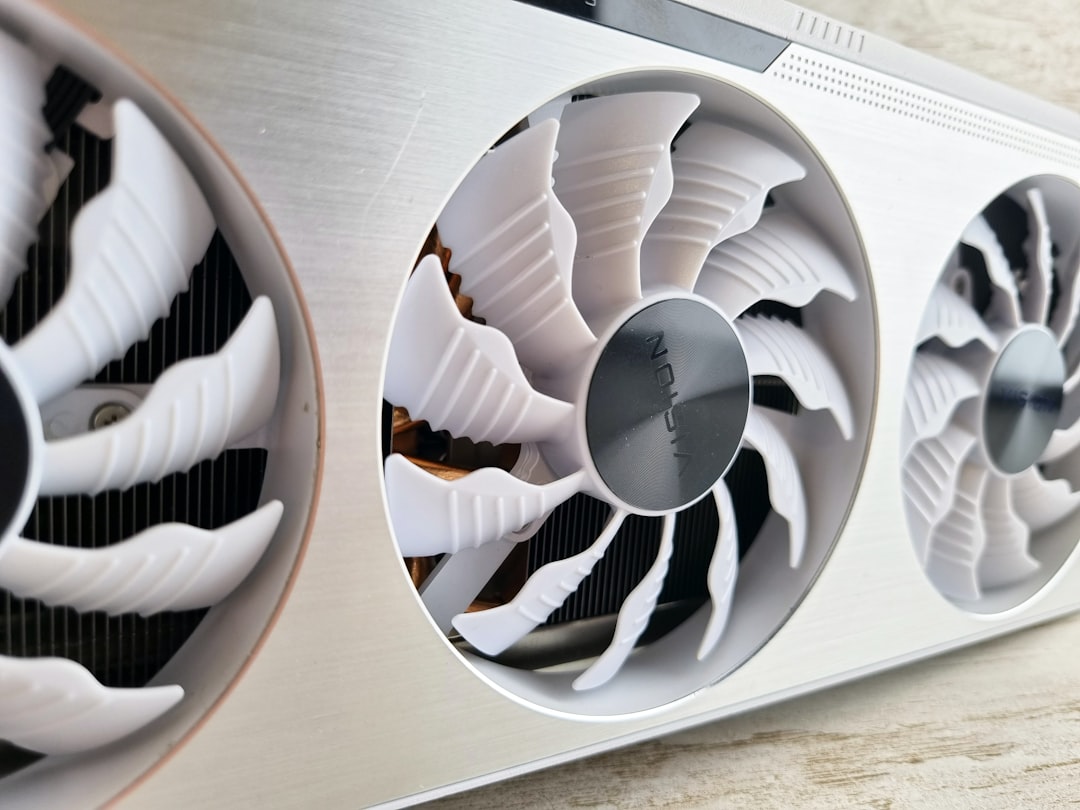
Programs like MSI Afterburner, SpeedFan, or motherboard BIOS settings allow users to customize fan curves based on temperature. This ensures fans increase speed under heat stress and stay quieter when idle.
6. Undervolt the CPU
Reducing CPU voltage without lowering clock speeds can reduce power usage and lower heat output. This must be done cautiously.
Steps include:
- Enable CPU voltage control in BIOS or use software like Intel XTU or AMD Ryzen Master.
- Decrease voltage in small increments (e.g., -0.05 V).
- Stress test after each adjustment using tools like Prime95 or AIDA64.
Warning: Undervolting can cause instability if not tested properly. Always monitor system performance and stability.
7. Monitor Temperatures Regularly
Use software tools to keep an eye on CPU temperatures and performance metrics:
- HWMonitor
- Core Temp
- Open Hardware Monitor
- NZXT CAM
Early detection of rising temperatures can help prevent long-term physical damage and performance issues.
Long-Term Prevention Tips
Besides individual fixes, taking general precautions will prevent recurring thermal issues:
- Keep your PC in a cool, ventilated area.
- Regularly update BIOS and drivers, which can contain thermal optimization patches.
- Avoid excessive CPU overclocking unless using premium cooling solutions.
When to Replace Hardware
If none of these fixes solve thermal throttling, the issue may lie in aging or defective components:
- Thermal sensors: Faulty sensors could report inaccurate temperature values.
- CPU: Rare, but some CPUs degrade after years of high temperature exposure.
- Motherboard VRMs: Inefficient power delivery generates more heat during load.
In such cases, replacing hardware might be the final solution.
FAQ: CPU Overheating and Thermal Throttling
-
Q: What temperature is too high for my CPU?
A: Generally, anything above 85°C consistently is concerning. CPUs are designed to shut down or throttle before reaching dangerous temperatures, but maintaining below 80°C is ideal for longevity. -
Q: Can thermal throttling damage my CPU?
A: No, thermal throttling is a protective measure. However, consistently high temperatures can reduce lifespan over time. -
Q: How do I check if my CPU is throttling?
A: Monitor your CPU’s clock speeds with tools like HWInfo during load. If you notice sharp frequency drops while temperatures peak, your CPU is throttling. -
Q: Should I undervolt or underclock my CPU?
A: Undervolting is preferred as it reduces heat without sacrificing performance. Underclocking reduces performance and is a last-resort option. -
Q: Is liquid cooling worth it?
A: Yes, especially for high-performance or overclocked systems. AIO coolers offer better thermal management, lower noise, and aesthetic appeal.
By taking a proactive approach to system cooling, users can prevent thermal throttling and maintain optimal CPU performance for years to come.