

Many users rely heavily on WhatsApp for daily communication — both personal and professional. When it works smoothly, it’s a seamless experience. However, a common issue that frustrates users is when WhatsApp notifications stop showing in the status bar. This not only causes inconvenience but might also lead to missed messages and late replies. Fortunately, several solutions exist to restore WhatsApp notifications to your device’s status bar.
Table of Contents
TL;DR
If WhatsApp notifications are not appearing in the status bar, it can typically be fixed by adjusting notification settings, checking system-level app permissions, and ensuring the app isn’t restricted in the background. Restarting the device and updating the app can also help. Always ensure Do Not Disturb mode is off and battery optimization settings are not restricting WhatsApp.
Possible Causes of Missing WhatsApp Notifications
Before diving into fixes, it’s important to understand why notifications may not appear in the status bar. The issue can stem from:
- System notification settings being misconfigured
- Battery optimization or background data restrictions
- WhatsApp notification settings being disabled
- Do Not Disturb or Focus Mode being active
- Updated OS or App versions having compatibility issues
Fixes for WhatsApp Notifications Not Showing in Status Bar
1. Check WhatsApp Notification Settings
Start by checking if WhatsApp notifications are enabled within the app:
- Open WhatsApp.
- Tap the three-dot menu and go to Settings > Notifications.
- Ensure all sections (Messages, Groups, Calls) have appropriate notification tones and show notifications is enabled.
2. Check System Notification Permissions
Your phone may have app-level settings that block notifications:
- Go to your device’s settings.
- Navigate to Apps & notifications > WhatsApp.
- Tap Notifications and ensure it’s turned on.
Also, make sure categories like Message Notifications, Call Notifications, and Other Notifications are enabled.

3. Disable Battery Optimization for WhatsApp
Android’s battery optimization settings might be closing WhatsApp in the background to save power:
- Go to Settings > Battery > Battery Optimization.
- Find WhatsApp in the list of apps.
- Select Don’t optimize or Allow background activity.
On iOS, ensure that Low Power Mode is turned off by going to Settings > Battery and toggling it.
4. Disable Do Not Disturb Mode
Do Not Disturb (DND) or Focus Modes can prevent WhatsApp notifications from appearing:
- Swipe down to access quick settings.
- Make sure Do Not Disturb is turned off.
- On iOS, go to Settings > Focus Mode and disable the current profile.
5. Allow WhatsApp to Run in the Background
Sometimes apps are restricted in the background which can block notifications. Ensure WhatsApp has proper background access:
- Go to Settings > Apps > WhatsApp > Battery.
- Select Unrestricted or Allow background activity.
6. Restart Your Device
It might sound cliché, but a simple restart can reset background processes, clear memory issues, and fix notification delays or drops.
7. Update WhatsApp and the Operating System
Bugs and glitches in earlier versions of WhatsApp or the operating system may interfere with notifications:
- Open the Google Play Store or Apple App Store and install any available WhatsApp updates.
- Navigate to Settings > System Update and apply any pending OS updates.
8. Reset Notification Preferences
If you’ve tweaked settings in the past or used functions like ‘mute’ or ‘archive,’ it’s worth resetting notification preferences:
- In WhatsApp, tap three-dots > Settings > Notifications.
- Tap the reset icon if available or manually set default values again.
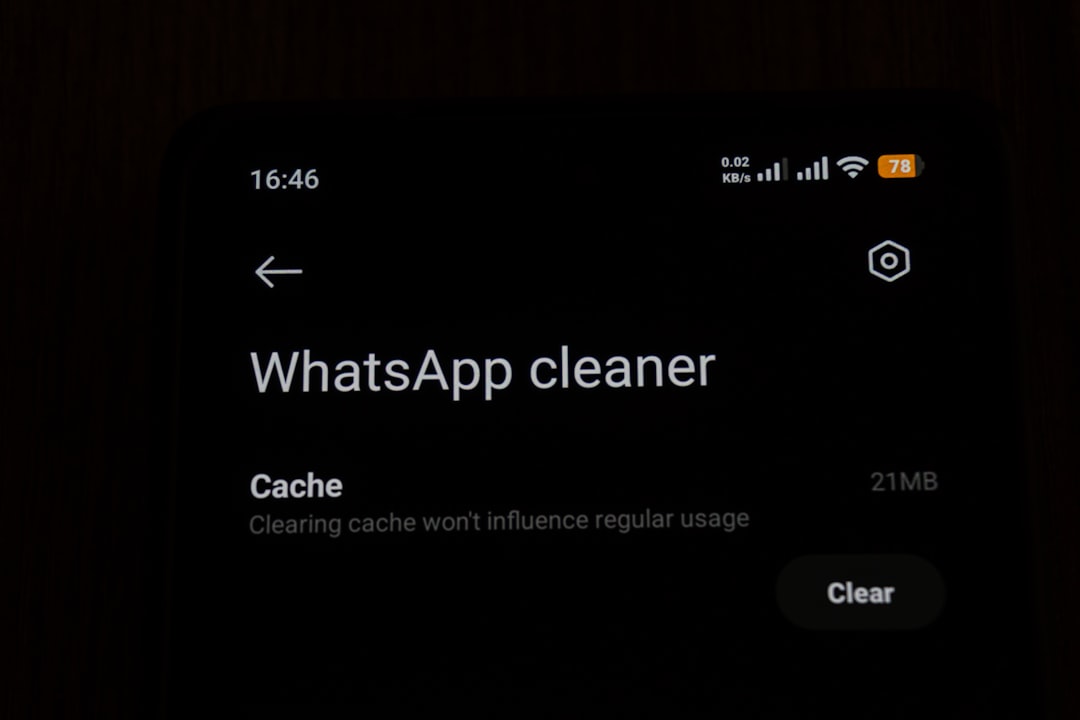
9. Clear Cache (Android Only)
Clearing the app cache can eliminate corrupted temporary files:
- Go to Settings > Apps > WhatsApp.
- Tap Storage & cache.
- Select Clear cache, but avoid clearing data unless absolutely necessary.
10. Reinstall WhatsApp (Last Resort)
If nothing else works, reinstalling the app may help. This ensures a fresh installation free from corrupted files:
- Backup chats first via Settings > Chats > Chat Backup.
- Uninstall the app and reinstall it from the store.
Preventive Tips to Avoid Notification Issues
Once you’ve resolved the issue, it helps to keep notification problems at bay:
- Regularly update your apps and OS.
- Avoid using battery saver mode all the time.
- Do not force close WhatsApp from the recent apps menu.
- Allow background data usage for all messaging apps.
When to Contact WhatsApp Support
If all troubleshooting steps fail, the issue might be due to a bug specific to your device model or OS version. In such cases:
- Visit WhatsApp’s official FAQ page.
- Send a bug report through Settings > Help > Contact Us inside the app.
Frequently Asked Questions (FAQ)
Why are WhatsApp notifications not showing in the status bar?
This issue may occur due to disabled app permissions, battery optimization settings, or enabled Do Not Disturb mode.
How do I allow WhatsApp to send notifications?
Go to your phone’s Settings > Apps > WhatsApp > Notifications and enable all necessary options, especially for messages and calls.
Can silent mode affect WhatsApp notifications?
Yes. Silent mode or Do Not Disturb can block both sound and visual alerts in the status bar.
Will background data settings affect notifications?
Absolutely. Restricting background data or battery usage can kill push notification services, making them delayed or nonexistent.
Why do I not see WhatsApp notifications even though they’re enabled?
This may be caused by system restrictions, outdated software, third-party cleaners, or custom firmware that interferes with app behavior.
Is reinstalling WhatsApp safe?
Yes, but make sure to back up your chat data before uninstalling to avoid losing messages.
Will clearing cache delete my chats?
No, clearing the cache doesn’t affect your chat history. Just avoid selecting ‘Clear Data’ unless you’re okay with re-setup.
By following the steps above, users can successfully troubleshoot and resolve the common problem of WhatsApp notifications not showing in the status bar, ensuring seamless communication once again.