
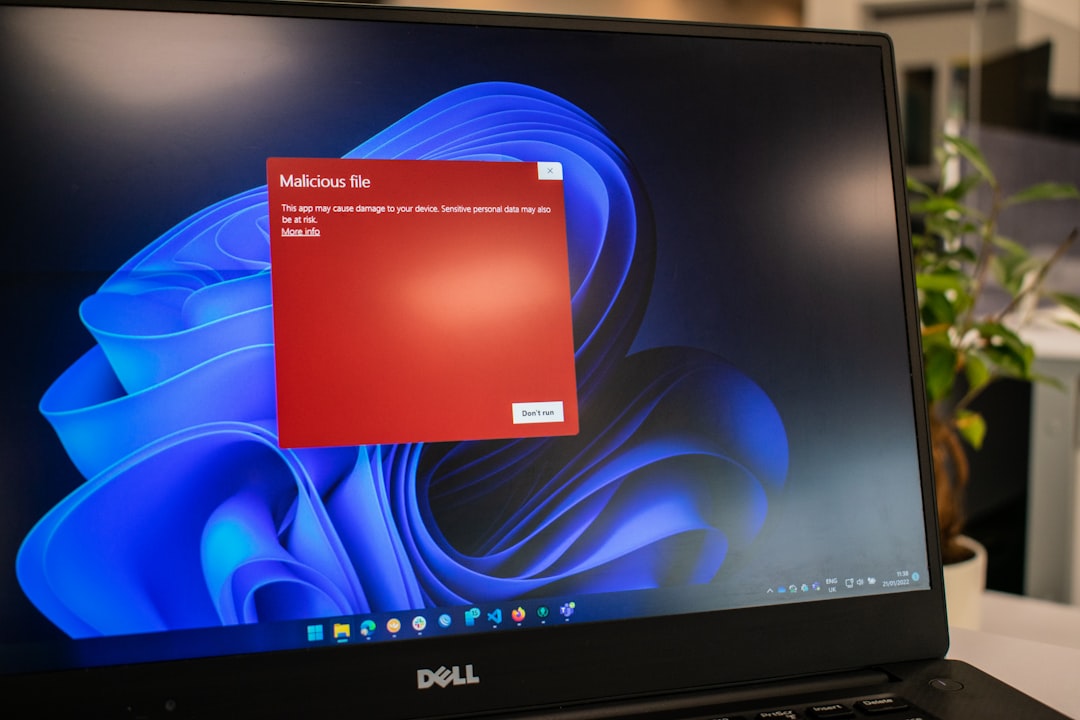
PUA:Win32/Packunwan is a detection name used by Microsoft Defender to identify potentially unwanted applications bundled with other software. While not always classified as high-risk malware, it can expose your system to intrusive ads, performance issues, and security vulnerabilities. Understanding how to safely remove it is essential to maintaining the integrity of your Windows 10 or Windows 11 system.
TLDR: PUA:Win32/Packunwan is a potentially unwanted application often bundled with free downloads. It can compromise performance, change browser settings, and expose your device to further threats. Removing it requires running a full antivirus scan, uninstalling suspicious applications, and verifying browser and startup settings. Following the correct step-by-step removal process ensures your system remains secure and stable.
Table of Contents
What Is PUA:Win32/Packunwan?
PUA stands for Potentially Unwanted Application. Unlike traditional viruses, PUAs are often installed when users download free or unofficial software packages. PUA:Win32/Packunwan typically acts as a bundler, meaning it installs additional software components without clear user consent.
Although not always malicious in the strictest sense, it can:
- Install unwanted browser extensions
- Display intrusive advertisements
- Modify browser search engines and homepage settings
- Collect user browsing data
- Slow down system performance
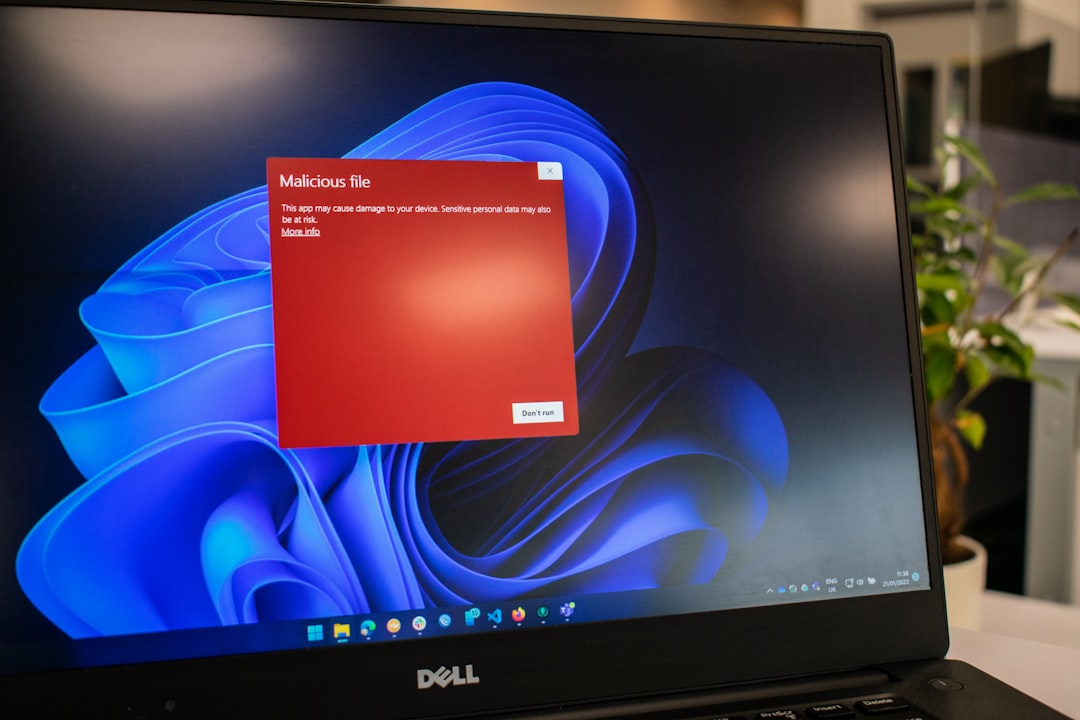
How Does PUA:Win32/Packunwan Get Installed?
This detection most commonly appears after:
- Downloading cracked or pirated software
- Installing freeware from unofficial sources
- Clicking misleading pop-up ads
- Opening suspicious email attachments
Many users unintentionally authorize installation by clicking “Next” repeatedly during software setup without reviewing optional offers.
Why You Should Remove It Immediately
While not classified as high-severity malware, allowing unwanted software to remain on your system increases the risk of:
- Further malware infections
- Data tracking and privacy invasion
- Performance degradation
- Browser instability
Removing it promptly prevents escalation into more serious security incidents.
Step-by-Step Guide to Remove PUA:Win32/Packunwan
Step 1: Run Microsoft Defender Full Scan
Microsoft Defender is built into Windows 10 and Windows 11 and is capable of removing most PUA detections.
- Click Start and open Settings.
- Go to Privacy & Security → Windows Security.
- Select Virus & Threat Protection.
- Click Scan options.
- Select Full scan and click Scan now.
This process may take between 30 minutes to several hours depending on your system size.
Step 2: Remove or Quarantine Detected Threats
After scanning:
- Review the detected items.
- Select Remove or Quarantine.
- Restart your computer if prompted.
Restarting ensures all associated files and processes are fully terminated.
Step 3: Uninstall Suspicious Programs
It is critical to manually remove bundled software.
- Press Win + R, type appwiz.cpl, and press Enter.
- Review the list of installed programs.
- Uninstall unfamiliar or recently installed suspicious applications.
Be cautious not to remove legitimate system components.
Step 4: Check Browser Extensions and Settings
PUAs often alter browser configurations.
For Google Chrome:
- Open Chrome → Menu → Extensions.
- Remove unknown extensions.
- Go to Settings → Reset settings → Restore settings to original defaults.
For Microsoft Edge:
- Open Edge → Extensions.
- Remove suspicious add-ons.
- Reset browser settings under Settings → Reset settings.
Step 5: Disable Unwanted Startup Entries
Some unwanted programs reinstall themselves via startup tasks.
- Press Ctrl + Shift + Esc to open Task Manager.
- Go to the Startup tab.
- Disable suspicious entries.
Step 6: Use a Secondary Malware Scanner (Optional but Recommended)
Using a reputable second-opinion scanner helps ensure no hidden remnants remain.
Recommended Removal Tools Comparison
| Tool | Best For | Real-Time Protection | Ease of Use | Free Version Available |
|---|---|---|---|---|
| Microsoft Defender | Built-in protection and basic PUA removal | Yes | Very Easy | Yes |
| Malwarebytes | Deep PUA and adware cleanup | Yes (Premium) | Easy | Yes |
| ESET Online Scanner | Advanced threat detection | No | Moderate | Yes |
Important: Download removal tools only from official websites to avoid additional bundled threats.

Advanced Removal (If the Threat Persists)
If PUA:Win32/Packunwan continues to reappear, advanced steps may be required.
1. Boot Into Safe Mode
- Press Win + I → Update & Security → Recovery.
- Select Restart now under Advanced startup.
- Choose Troubleshoot → Advanced Options → Startup Settings.
- Select Enable Safe Mode.
Run another full scan while in Safe Mode.
2. Check Scheduled Tasks
- Press Win + R and type taskschd.msc.
- Review Task Scheduler Library for unknown entries.
- Disable suspicious automated tasks.
3. Review Registry Entries (Advanced Users Only)
Warning: Editing the Windows Registry incorrectly may cause system instability.
- Press Win + R, type regedit.
- Search for suspicious keys related to the detected software.
- Back up the registry before making changes.
How to Prevent Future Infections
Preventing PUA infections is far easier than removing them.
- Download software only from official sources.
- Select Custom installation during setups.
- Decline optional offers carefully.
- Keep Windows and software updated.
- Use reputable antivirus protection.
Additionally, avoid torrents and cracked software, which are common carriers of bundled threats.
Common Questions
Is PUA:Win32/Packunwan a virus?
No, it is categorized as a potentially unwanted application rather than a traditional virus. However, it can open pathways to more serious infections.
Can I ignore it?
Ignoring it is not recommended. PUAs may compromise privacy and reduce system reliability over time.
Will resetting Windows remove it?
In extreme cases, a Windows reset may remove persistent infections. However, this step should only be taken after attempting proper manual and automated removal procedures.
Final Thoughts
PUA:Win32/Packunwan may not initially appear as dangerous as a trojan or ransomware, but it represents a significant security and privacy concern. Unwanted bundled applications often act as gateways for more serious threats and should not be overlooked.
By following a structured removal process — running full antivirus scans, uninstalling suspicious applications, cleaning browser settings, and using additional security tools when necessary — you can restore your Windows 10 or Windows 11 system safely.
Maintaining vigilance during downloads and installations is your strongest line of defense. A careful, proactive approach will ensure your system remains stable, secure, and free from unwanted interference.