

The Amazon Firestick is a popular and convenient way to stream your favorite content on your TV. However, like all tech devices, it can sometimes encounter issues — and one of the most frustrating ones is when your Firestick gets stuck on the loading screen. If your screen is frozen on the Fire TV logo or endlessly loops during startup, you’re not alone. Many users experience this problem, and fortunately, there are proven steps you can take to resolve it.
Table of Contents
TL;DR
If your Firestick is stuck on the loading screen, start by checking your power source and HDMI connection. Restart the device, try using a different cable or port, and consider a factory reset if nothing else works. Avoid pulling power abruptly in the future to help prevent these kinds of issues. This guide walks you through step-by-step solutions to get your Firestick back to normal.
Common Causes of the Firestick Loading Screen Issue
Before diving into the fixes, it helps to understand what might be causing this issue in the first place. Knowing the root of the problem can help prevent future occurrences. Some of the most common culprits include:
- Insufficient Power Supply – Using a non-original power adapter or USB port on your TV may not provide enough power.
- Glitches or Software Bugs – Sometimes, a temporary bug in the Fire OS can cause it to fail during boot-up.
- HDMI Port Issues – A faulty HDMI connection can prevent the Firestick from displaying the interface properly.
- Corrupted Firmware – Failed system updates or firmware corruption can lead to loading screen loops.
Step-by-Step Solutions to Fix a Firestick Stuck on Loading Screen
1. Perform a Power Cycle
This is the simplest and often most effective first step.
- Unplug your Firestick from the HDMI port and the power source.
- Wait for at least 30 seconds to 1 minute.
- Plug everything back in and turn the device on.
Sometimes, a simple refresh like this can fix whatever glitch is causing your Firestick to stall.
2. Use the Original Power Adapter
It’s tempting to use your TV’s USB port to power the Firestick, but this can cause power issues.
Always use the power adapter that came with your Firestick. The USB ports on TVs often do not deliver consistent enough power for streaming devices. Over time, this can lead to start-up issues like the loading screen problem.
3. Try a Different HDMI Port
If your Firestick is getting enough power but still not booting up past the loading screen, your HDMI port might be the problem.
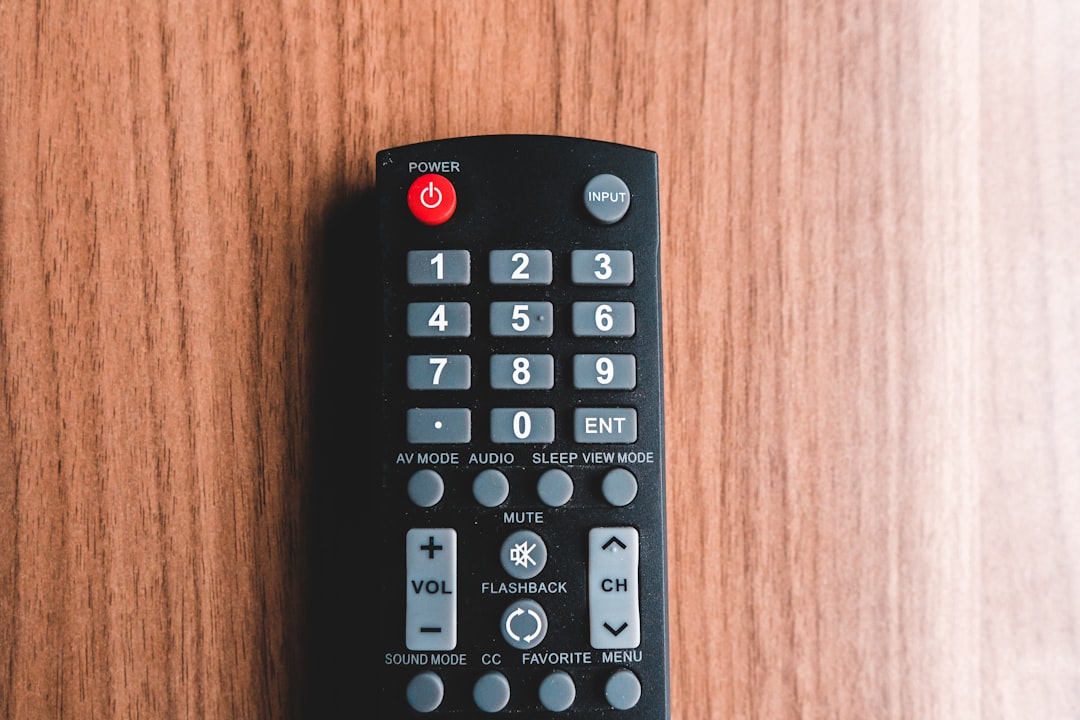
Switch your Firestick to a different HDMI port on your TV. Sometimes ports malfunction due to dust, wear, or electrical issues. After switching, restart the device and see if it loads correctly.
4. Check Your Internet Connection (If It Loads Eventually)
If your Firestick seems to load partially before appearing stuck, your internet connection could be compromised.
Check if your Wi-Fi is working on another device. If it’s not, restart your router. A poor or lost network connection during boot can occasionally cause the device to hang.
5. Use a New HDMI Extender
The HDMI extender that comes with your Firestick helps it receive better Wi-Fi signals and fit snugly into HDMI ports.
If that extender is broken or malfunctioning, it might be causing the issue. Try connecting your Firestick directly to the TV without the extender or replace it if needed.
6. Reset Firestick via Remote Combination
If your Firestick is not responsive but you have the remote handy, try initiating a soft reset using a button combination:
- Hold down the Back button and the Right directional button on your remote simultaneously for at least 10 seconds.
This triggers a reset prompt that may allow your device to reboot correctly. If this doesn’t work, move on to the factory reset method.
7. Perform a Factory Reset
If no other solution works, you may have to perform a factory reset. Note: You will lose all your apps, settings, and account details with this step.
Here’s how to do it without accessing the settings menu:
- Ensure your Firestick is plugged into both the HDMI port and a wall outlet.
- Press and hold the Back and Right directional button together on your remote for about 10 seconds.
- On the screen that follows, select the option to Reset to Factory Defaults.
If nothing appears on-screen but you still hear audio cues, wait for the device to eventually restart. A successful reset may fix deeper system issues.
8. Try the Firestick on Another TV
There’s always the chance that your Firestick isn’t the culprit — your TV might be. To confirm, plug the Firestick into another HDMI-equipped TV and see if it boots past the loading screen.
If it works on a different TV, the issue likely lies with the HDMI port or settings of the first TV. In such cases, updating the TV firmware or checking HDMI-CEC settings might help.
9. Update Firestick Software (Once Booted)
If you finally get the Firestick past the loading screen, don’t celebrate just yet. To prevent future issues, update your system software immediately.
- Go to Settings > My Fire TV > About > Check for Updates.
- If an update is available, download and install it.
Updates often contain bug fixes for issues that cause system instability or boot problems.
When to Contact Amazon Support
If none of the above fixes work, or if your Firestick is completely unresponsive with no LED or indication of power:
- It may be permanently damaged or possess a hardware defect.
- Reach out to Amazon Support for warranty replacement or further guidance.
- If you’re within the return or warranty window, you may qualify for a free replacement.
Prevention Tips for Firestick Issues
To avoid running into the loading screen loop again, consider these best practices:
- Always unplug the Firestick by selecting “Sleep” or “Turn Off” rather than yanking the power cord.
- Don’t power the device through your TV’s USB port. Use a wall adapter.
- Ensure that your internet connection is stable and doesn’t drop suddenly during updates.
- Update your device regularly.
Final Thoughts
A Firestick stuck on the loading screen is undeniably frustrating, but the good news is that it’s not usually fatal. With a little patience and the right troubleshooting steps, you can get your device back up and running in no time. Whether it’s a simple power issue or a need for a factory reset, systematically trying each solution brings you closer to enjoying your shows once again.
Remember: proper care, consistent updates, and using the official power accessories go a long way in maintaining your Firestick’s performance and longevity.