

Running graphics-intensive artificial intelligence software like Stable Diffusion often pushes modern GPUs to their limits. For hobbyists and professionals alike who generate high-resolution images using Stable Diffusion, few issues are more frustrating than encountering the dreaded “CUDA Out of Memory” error. This error can halt your progress entirely, especially if you’re aiming to render large images or use advanced features that demand a high amount of GPU memory.
Table of Contents
TL;DR
The “CUDA Out of Memory” error in Stable Diffusion typically occurs when the GPU runs out of available video memory during image generation. A practical and effective solution is to adjust the batch size, which reduces memory load without compromising image quality. Lowering the batch size to 1 allows most users to run high-resolution renders even on mid-range GPUs. Other optimizations can include enabling memory-efficient plugins or using different sampling strategies.
What Is the “CUDA Out of Memory” Error?
When you run Stable Diffusion on your local machine, the model uses your GPU’s CUDA cores to speed up image generation. However, because each step in the generation process consumes memory, especially when rendering large or highly detailed images, it’s easy to exceed the GPU’s VRAM capacity. When that happens, you see:
CUDA out of memory. Tried to allocate X GiB (GPU 0; Y GiB total capacity; Z GiB already allocated; W GiB free; T MiB cached)
This message means your GPU attempted to allocate more memory than it had available, resulting in a crash or interruption of the rendering process.
Common Triggers for the Error
Several factors determine how much GPU memory is used during image generation:
- Image resolution: Larger resolutions demand exponentially more memory.
- Batch size: Rendering multiple images simultaneously (higher batch sizes) multiplies memory usage.
- Sampling steps: More steps mean more memory usage for storing temporary data during generation.
- Model complexity: Specialized models like Stable Diffusion XL or those with additional conditioning consume more VRAM.
- Tiled rendering or upscaling features: These can be both cost-effective or resource-heavy depending on implementation.
Of these, batch size often offers the most straightforward way to limit memory usage without changing image quality.
Why Batch Size Matters
Batch size refers to how many images you ask Stable Diffusion to process simultaneously. Setting the batch size to 1 means the model processes a single image per iteration. This significantly reduces the required VRAM because you are only allocating memory for one workflow at a time. Larger batch sizes—2, 4, or even more—duplicate the memory footprint per batch.
While a higher batch size can increase throughput when generating many images, it is unnecessary and even detrimental when generating a single high-resolution piece of artwork. For instance, moving from a batch size of 4 to 1 can reduce your memory usage by up to 75%, depending on your prompt and settings.
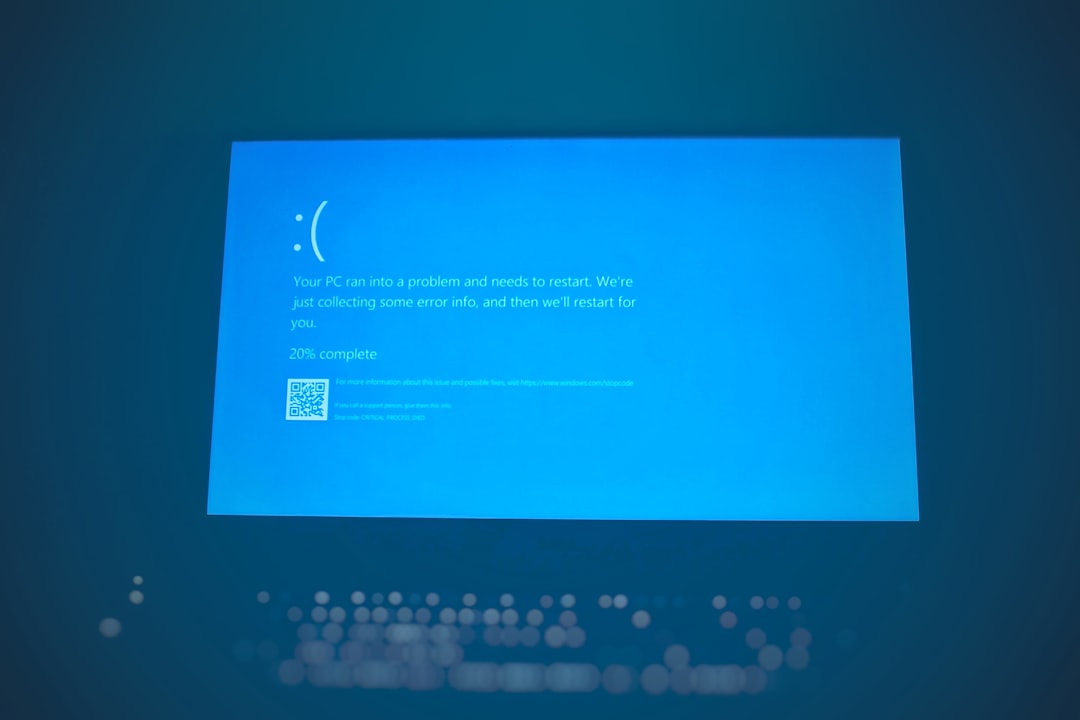
Real-World Example: Rendering 2048×2048 Images
Let’s say you are trying to render a 2048×2048 high-detail image using a GPU with 8 GB of VRAM. With default settings and a batch size of 4, Stable Diffusion likely crashes with the CUDA error. Here’s how performance improved by tweaking the batch size:
| Batch Size | Peak VRAM Usage | Outcome |
|---|---|---|
| 4 | 11.5 GB | CUDA error, rendering failed |
| 2 | 6.7 GB | Occasional crashes |
| 1 | 3.2 GB | Rendered successfully |
The reduction in memory demand is dramatic and gives clear evidence that batch size is a key factor in avoiding CUDA errors, especially for users on GPUs with limited VRAM.
How to Adjust Batch Size in Stable Diffusion
Depending on the version or UI you’re using (e.g., Automatic1111 WebUI, InvokeAI, ComfyUI), the steps to reduce batch size may vary slightly. But the core action remains the same.
In Automatic1111 WebUI:
- Open the web interface in your browser.
- Locate the “Batch size” field in the main text-to-image (txt2img) generation tab.
- Set this value to 1.
That’s it. Even though it’s a small change, it can make a night-and-day difference in performance and allow high-res renders on modest hardware.

Other Tips to Make Better Use of GPU Memory
While adjusting the batch size is often the easiest solution, there are other ways to reduce your GPU memory usage to avoid CUDA errors:
- Use xformers: This is an optimized attention mechanism that speeds up processing and reduces memory overhead.
- Enable memory-efficient attention: Some versions of the model allow toggling this feature.
- Reduce sampling steps: Try lowering the number of steps to 20–30 if you’re using very high settings.
- Use a smaller model: Base models or pruned versions often perform similarly with less overhead.
- Use tiled rendering: If your software supports it, breaking a large image into smaller tiles can reduce peak memory usage during generation.
Investing in Better Hardware?
If you find yourself constantly running into CUDA memory issues despite optimizing settings, it might be time to consider upgrading your hardware. GPUs with 12 GB or more of VRAM, such as the NVIDIA RTX 3060 or above, provide ample memory for most Stable Diffusion uses when working with high-resolution images or complex models.
The Balance Between Performance and Quality
It’s worth noting that lowering batch size has no impact on the quality of the output – only the number of images generated concurrently. This makes it an ideal optimization parameter. With the right settings, even 8 GB GPUs can create ultra-high-res images, provided the rest of the pipeline is optimized for memory efficiency.
Conclusion
The “CUDA Out of Memory” error is a common and understandable hurdle in running Stable Diffusion, especially on consumer-grade GPUs. However, it often misleads users into believing that their hardware is completely inadequate. The truth is, with a simple tweak like reducing the batch size to 1, even high-resolution renders become achievable. Combine this with other memory-saving tricks, and you can unlock Stable Diffusion’s full potential without requiring expensive hardware upgrades.
So the next time Stable Diffusion throws a CUDA error your way, remember: It’s not necessarily the end of the road—just a sign it’s time to adjust your parameters.