
Before a design is published, printed, coded, or handed to a client, it needs to be seen as an audience would experience it. That is where preview mode becomes essential. It allows designers, stakeholders, developers, and clients to review a layout in a realistic environment without making the work public or permanent.
TLDR: Preview mode shows a design as it will likely appear to users before it goes live. Designers use it to catch layout issues, test responsiveness, review interactions, and reduce revision time. For example, a product team reviewing a landing page in preview mode might discover that a call to action button drops below the fold on mobile, potentially affecting the 62% of visitors accessing the page from smartphones. Fixing that issue before launch can prevent lost clicks, confused users, and expensive post-launch corrections.
Table of Contents
What Is Preview Mode?
Preview mode is a viewing state that displays a design, page, app screen, email, presentation, or prototype as close as possible to its final form. Unlike an editing workspace, where guides, grids, margins, handles, layers, and toolbars may be visible, preview mode removes distractions and shows the work from the viewer’s perspective.
In web design, preview mode may show how a page appears in a browser before it is published. In app design, it may simulate taps, transitions, and navigation flows. In print design, it may hide bleed guides and show the final trimmed layout. In email design, it may reveal how a message renders on desktop and mobile screens.
The main purpose is simple: to answer the question, “Does this design work in the real world?”
How Preview Mode Differs From Edit Mode
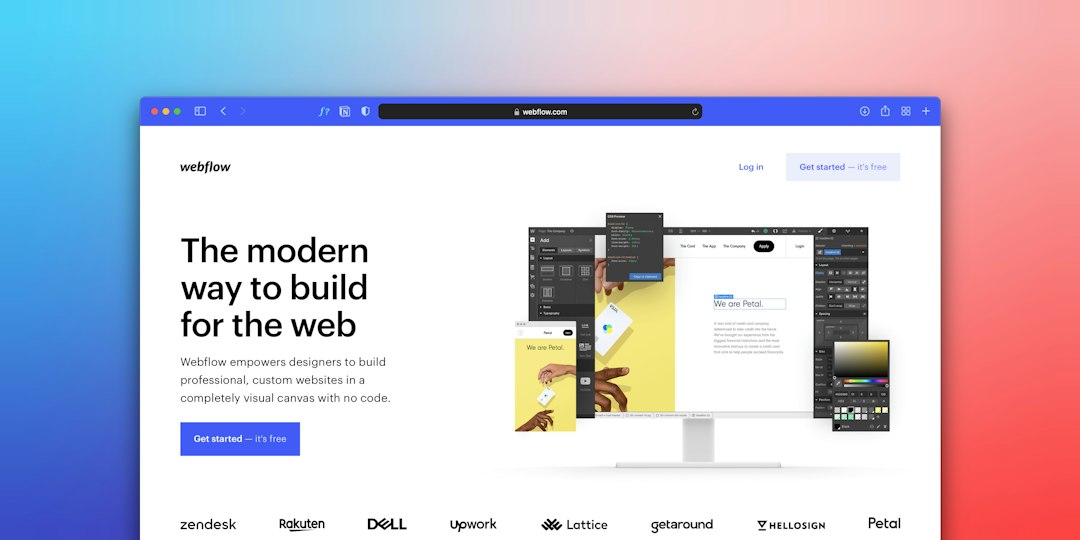
Edit mode is built for creation. It gives designers access to layers, text boxes, alignment tools, color controls, assets, grids, and measurement systems. It is technical, flexible, and often crowded with visual aids.
Preview mode is built for evaluation. It strips away those editing controls so the designer can focus on the final experience. This distinction matters because a layout that looks balanced inside an editing canvas may feel crowded, slow, unclear, or awkward when viewed as a user would see it.
- Edit mode supports building, arranging, and adjusting the design.
- Preview mode supports reviewing, testing, and validating the design.
- Edit mode shows the structure behind the work.
- Preview mode shows the experience created by that structure.
Why Designers Use Preview Mode
Designers use preview mode because it helps them move from theory to reality. A design may follow best practices and still fail when viewed in context. Previewing reveals small problems that can have large consequences.
1. It Helps Catch Visual Mistakes
Spacing issues, misaligned icons, awkward line breaks, oversized images, and inconsistent button styles are often easier to notice in preview mode. When interface controls disappear, the eye can focus on what the audience will actually see.
For example, a designer may notice that a headline looks balanced on a desktop screen but wraps poorly on a tablet. A single word may drop to the next line, creating an uneven layout. Preview mode exposes that issue before the project reaches users.
2. It Supports Responsive Design Testing
Modern designs must work across many screen sizes. A website may be viewed on a 27-inch monitor, a laptop, a tablet, or a small phone. Preview mode often allows designers to switch between device views or resize the canvas to test how the layout adapts.
This is especially important for navigation menus, image crops, forms, and calls to action. A desktop design may rely on horizontal spacing, while a mobile design may need stacked sections and larger touch targets. Preview mode helps ensure that each version remains usable and visually clear.
3. It Reveals Interaction Problems
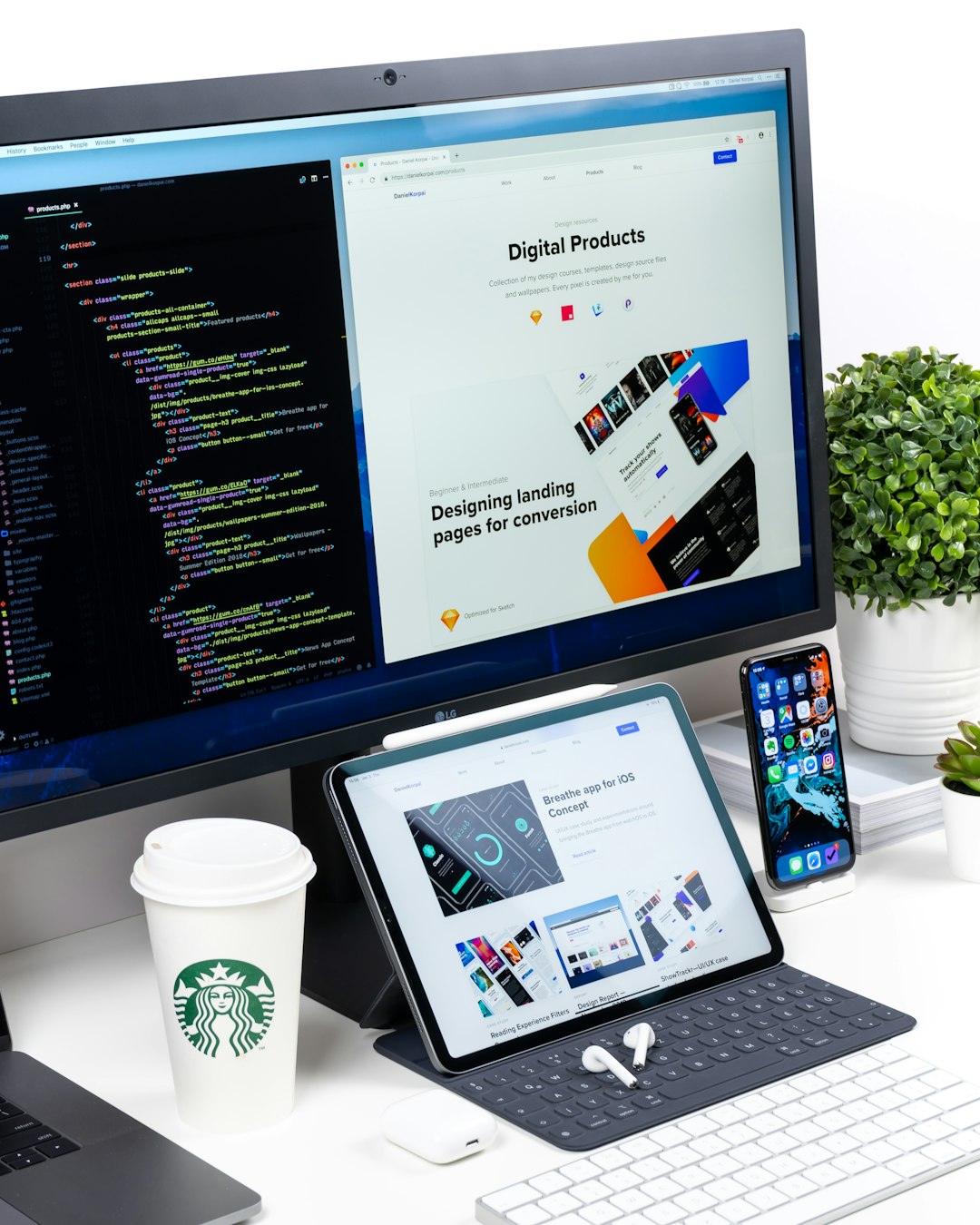
Static screens can hide problems in user flow. Preview mode can show whether buttons feel obvious, whether hover effects are helpful, whether transitions are smooth, and whether navigation paths make sense. In prototypes, it may allow reviewers to click through pages as if they were using a finished product.
This is valuable because users do not experience interfaces as isolated screens. They move through them. Preview mode helps designers evaluate the journey, not just the appearance of each stop along the way.
4. It Improves Collaboration
Clients and stakeholders may struggle to interpret wireframes, layer panels, or design canvases. Preview mode gives them a cleaner and more realistic version to review. This can reduce confusion and make feedback more useful.
Instead of commenting on construction details, reviewers can respond to the actual experience: whether the message feels clear, whether the flow seems intuitive, and whether the visuals match the intended brand impression.
5. It Reduces Costly Revisions
Finding a problem before publication is usually cheaper than fixing it afterward. A broken layout, unreadable text, or unclear form field can affect conversions, sales, signups, or support requests. Preview mode acts as a quality control step that reduces the risk of public mistakes.
In a typical digital project, even a small improvement discovered during preview can be meaningful. If a signup page receives 10,000 monthly visits and a preview review helps clarify the main button, a modest 3% increase in completion could mean 300 additional successful actions per month.
Common Uses of Preview Mode
Preview mode appears in many design workflows. Its exact features differ depending on the medium, but the goal remains the same: to verify that the work looks and functions correctly before release.
- Website design: reviewing pages before publishing them online.
- App design: testing screen transitions, buttons, and navigation paths.
- Email design: checking layout behavior across desktop and mobile inboxes.
- Print design: viewing final composition without editing marks or guides.
- Presentation design: checking slide flow, animations, and readability.
- Social media design: seeing how graphics appear in feed, story, or ad placements.
What Designers Check in Preview Mode
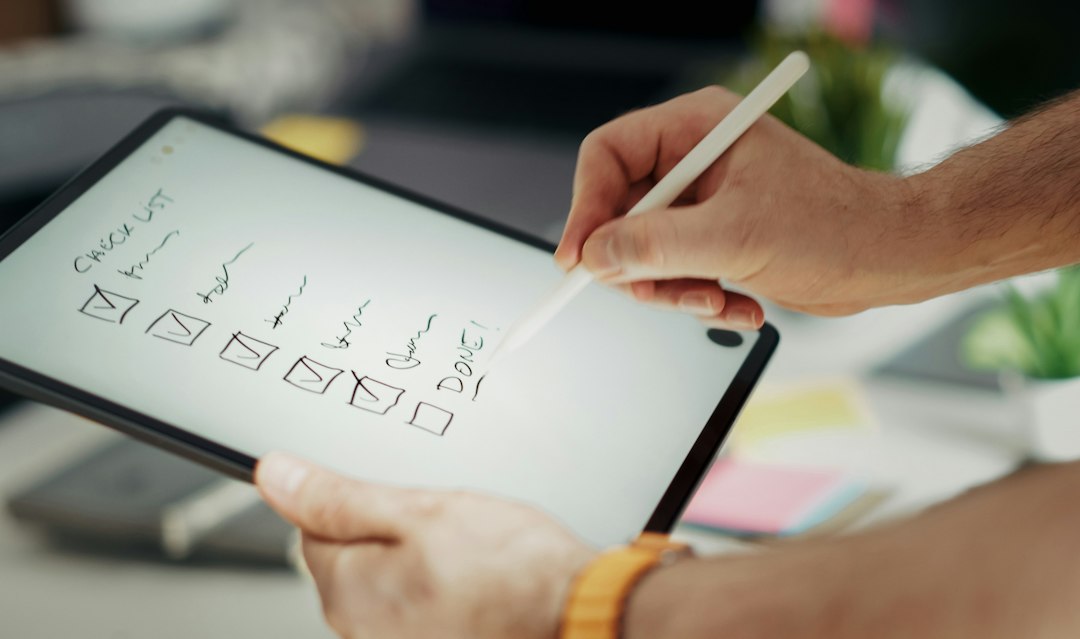
Preview mode is most effective when designers use it with a clear checklist. A quick glance is helpful, but a structured review catches more issues.
- Readability: Is the text large enough, clear enough, and properly spaced?
- Hierarchy: Does the most important information stand out first?
- Alignment: Do elements feel organized and intentional?
- Responsiveness: Does the design work across different screen sizes?
- Navigation: Can users understand where to go next?
- Accessibility: Are contrast, labels, and interactive elements usable?
- Performance impression: Do animations, images, or transitions feel too heavy?
- Brand consistency: Do colors, typography, and tone match the intended identity?
Preview Mode and User Experience
Preview mode is closely connected to user experience. A design is not successful simply because it looks attractive in an editor. It must be understandable, accessible, responsive, and comfortable to use.
By stepping into the viewpoint of the user, designers can identify friction. A form may look elegant but ask for too much information. A button may be visually stylish but hard to notice. A hero image may be beautiful but push essential content too far down the page. Preview mode brings these issues into focus.
Limitations of Preview Mode
Although preview mode is useful, it is not perfect. It may not reproduce every browser behavior, device condition, loading speed, accessibility tool, or real user habit. A preview is a strong simulation, not a complete replacement for testing.
For that reason, designers often combine preview mode with usability testing, browser checks, device testing, accessibility audits, and stakeholder reviews. Preview mode is an important checkpoint, but it works best as part of a broader quality assurance process.
Best Practices for Using Preview Mode
- Preview early and often: Waiting until the end can allow small issues to become large ones.
- Check multiple devices: Desktop approval does not guarantee mobile success.
- Review with a goal: Each preview session should focus on layout, flow, content, or accessibility.
- Invite feedback: Colleagues and stakeholders may notice issues the designer has overlooked.
- Compare against user needs: The final experience should serve the audience, not just the internal brief.
FAQ
What does preview mode do?
Preview mode shows a design as it is expected to appear in its final or near-final state. It hides editing tools and allows reviewers to inspect layout, content, responsiveness, and interactions.
Why is preview mode important for designers?
It helps designers catch visual, functional, and usability problems before launch. This reduces revisions, improves collaboration, and supports a better user experience.
Is preview mode the same as publishing?
No. Preview mode is usually private or temporary, while publishing makes the design live, public, printed, or officially delivered.
Can preview mode replace user testing?
No. Preview mode is a valuable review tool, but it does not fully replace testing with real users, devices, browsers, or accessibility technologies.
When should designers use preview mode?
Designers should use it throughout the process, especially after major layout changes, before stakeholder reviews, and before final approval or launch.