
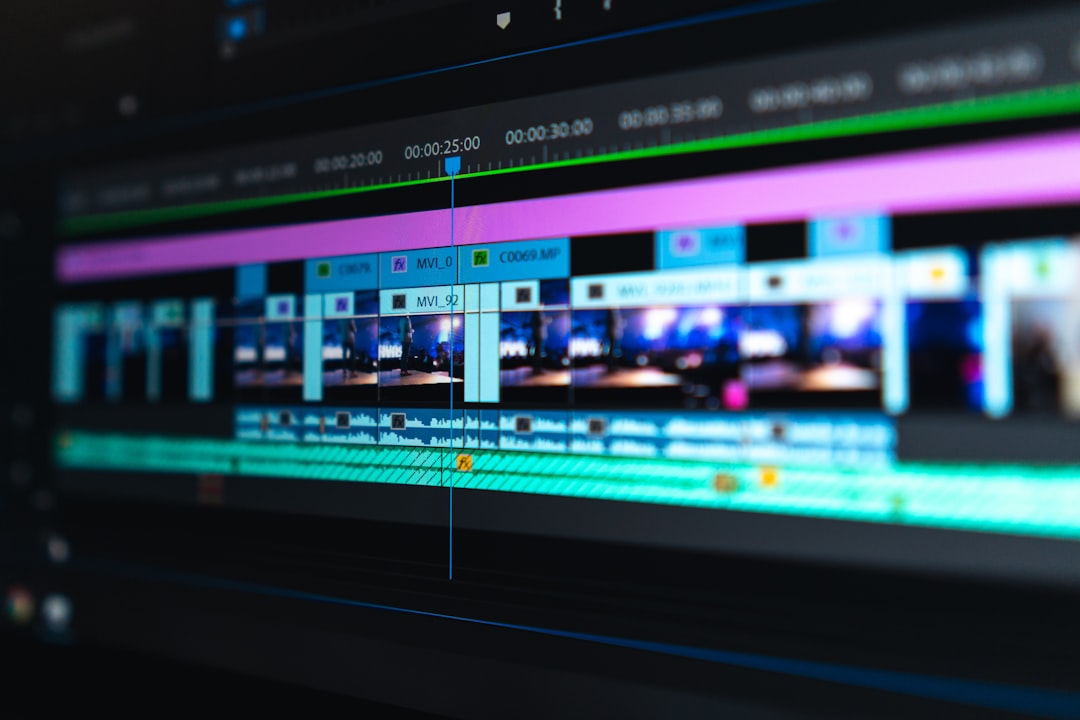
Magix Video Pro is best suited for creators who want a serious video editor without jumping straight into the cost and complexity of high-end studio systems. It offers multi-track editing, color correction, audio cleanup, title design, effects, multicam support, and export tools in one desktop package. It is not the flashiest editor, and some menus feel a little buried, but it gives editors a lot of control once the workflow clicks.
TLDR: Magix Video Pro is a full-featured video editing program for YouTubers, small businesses, educators, event videographers, and semi-professional editors. A creator cutting a 12-minute product review with 70 clips, screen recordings, music, captions, and color tweaks can finish the full edit inside one project instead of switching between several apps. Proxy editing can noticeably improve playback on mid-range PCs, often cutting timeline stutter by 30% to 50% when working with 4K footage. The catch is that the interface rewards patience; beginners may need a few sessions before it feels natural.
Table of Contents
What Is Magix Video Pro?
Magix Video Pro, often associated with the Video Pro X line, is a timeline-based video editing application for Windows. It sits above basic consumer editors and aims at users who need more control over picture, sound, and delivery formats.
The program is built around a familiar editing layout: media pool, preview monitor, timeline, effects panels, and export settings. If you have used other non-linear editors, the structure will feel recognizable. If you are coming from phone apps or simple drag-and-drop editors, expect a learning curve.
Its strongest appeal is balance. You get many professional-style tools without the intimidating feel of a broadcast suite. That makes it useful for freelancers, training teams, online course creators, wedding editors, and solo creators who handle shooting, editing, sound, and delivery by themselves.
Core Editing Features
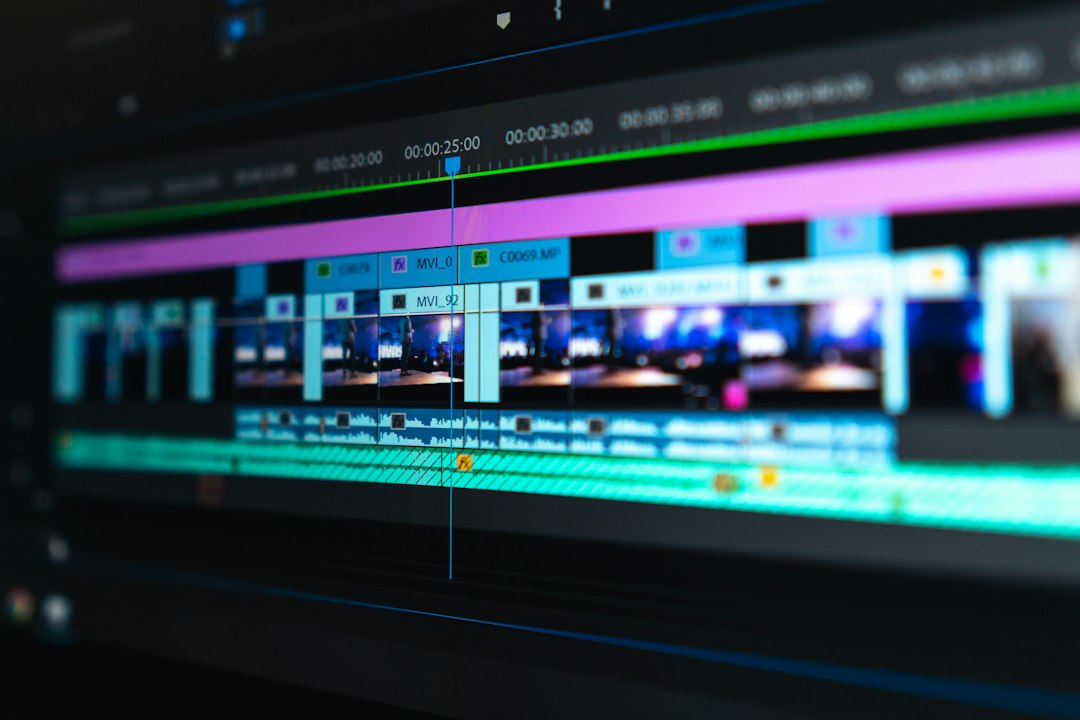
Magix Video Pro uses a multi-track timeline, which means you can layer video, audio, titles, images, effects, and overlays with precision. This is essential for anything more complex than a simple trim.
- Multi-track editing: Stack clips, graphics, music, voiceovers, and adjustment layers across multiple tracks.
- Trimming and cutting: Split clips, ripple edit sections, remove gaps, and tighten pacing.
- Proxy workflow: Create lighter versions of heavy video files for smoother playback during editing.
- Multicam editing: Sync and cut between several camera angles, useful for interviews, stage events, podcasts, and weddings.
- Keyframe animation: Animate position, scale, opacity, effects, and other clip properties over time.
- Format support: Work with common formats from mirrorless cameras, phones, action cameras, screen recorders, and drones.
The timeline is flexible, though not always elegant. Honestly, it feels like some actions take one extra click compared with rival editors. Moving from a rough cut to fine adjustment can feel a bit fiddly until you customize your workspace and shortcuts.
Creative Tools for Better Visuals
Magix Video Pro includes a wide range of visual tools. Some are practical. Others are more stylized. Used with restraint, they can lift plain footage and make it look more polished.
Color correction is one of the key areas. You can adjust brightness, contrast, saturation, white balance, shadows, and highlights. The editor also supports color matching and grading tools that help clips from different cameras sit together more naturally.
Lookup tables, or LUTs, can be applied to create a cinematic tone or match a brand style. For example, a travel creator may use a warm LUT for beach footage, then reduce saturation for city scenes to keep the final video consistent.
Stabilization helps reduce shaky handheld footage. It is useful for travel shots, wedding clips, real estate walkthroughs, and action camera footage. It cannot save every shot, especially if motion blur is baked in, but it can turn a shaky clip into something usable.
Titles and text tools allow you to create lower thirds, chapter labels, callouts, captions, and intro cards. The templates help when speed matters, while manual controls let you adjust font, size, motion, and placement.

Audio Editing and Sound Control
Bad audio ruins video faster than bland visuals. Magix Video Pro gives users enough audio control to clean up common problems without opening a separate audio program.
- Volume automation: Raise or lower audio levels over time using keyframes.
- Noise reduction: Reduce hiss, hum, and background noise from interviews or voiceovers.
- Equalization: Shape voice tone and remove muddy frequencies.
- Audio mixer: Balance dialogue, music, effects, and ambient sound.
- Sync tools: Align external audio with camera footage for cleaner production sound.
This matters for corporate videos, online courses, podcasts, and documentary work. A simple voiceover mixed 6 to 10 dB louder than background music can make a video feel much more professional. Viewers may not notice the mix, but they will notice when it is wrong.
Workflow: From Import to Export
A typical Magix Video Pro workflow starts with importing footage into the media pool. From there, you sort clips, build a rough timeline, trim the best moments, add music, clean audio, correct color, add titles, and export.
- Import media: Bring in video clips, audio, still images, logos, and graphics.
- Organize assets: Group by scene, camera, date, or content type.
- Create a rough cut: Place the best clips in order and remove obvious mistakes.
- Refine pacing: Tighten cuts, adjust transitions, and remove dead air.
- Improve visuals: Apply correction, grading, stabilization, and effects.
- Mix audio: Clean voice, balance music, and add sound effects.
- Export: Render for YouTube, social platforms, client delivery, archive, or broadcast-style use.
Export options are broad, covering popular web and device formats. This is helpful, but preset naming can be less clear than it should be. Expect to waste time on the first few exports if you are comparing bitrate, resolution, frame rate, and codec options.
Performance and Hardware Needs
Magix Video Pro runs best on a capable Windows machine. For HD editing, a modern multi-core processor, 16 GB of RAM, and a dedicated graphics card are a sensible baseline. For 4K projects, 32 GB of RAM and fast SSD storage make a real difference.
Proxy editing is the feature that can save weaker systems. Instead of forcing the computer to play large 4K files in real time, the software creates lighter editing copies. The final export still uses the original quality files. This is especially useful for drone footage, high-bitrate mirrorless camera files, and long event recordings.
It drives me crazy when waveform previews or thumbnails take a few seconds longer to refresh than expected, especially on bigger projects. It is not a dealbreaker, but it can interrupt your rhythm during detailed edits.
Best Use Cases for Magix Video Pro
Magix Video Pro is a good fit for users who need more than basic editing but do not want to build a full post-production pipeline.
- YouTube creators: Product reviews, tutorials, commentary, travel edits, and channel intros.
- Small businesses: Promos, training videos, customer explainers, social clips, and presentations.
- Educators: Recorded lessons, online course modules, lecture edits, and screen-recorded guides.
- Event videographers: Weddings, conferences, performances, interviews, and highlight reels.
- Marketing teams: Branded clips, ad variations, testimonials, and internal communications.
- Hobby filmmakers: Short films, music videos, documentaries, and family projects.

Where It Falls Short
No editor is perfect. Magix Video Pro has plenty of tools, but the interface can feel dense. Some panels are easy to miss. Certain advanced settings are tucked away in places that do not feel obvious at first.
Template quality can also be mixed. Some titles and effects are useful right away. Others may feel dated unless you customize them. For modern social videos, you may need to create your own cleaner motion graphics instead of relying on default presets.
Collaboration is another weak area compared with cloud-centered editors. If you work with a remote team that needs shared projects, comments, version control, and online review links, you may need outside tools to fill those gaps.
Who Should Choose It?
Choose Magix Video Pro if you want strong timeline editing, detailed control, good audio tools, color correction, and flexible exports in a single Windows program. It works well for creators who produce regular videos and want room to grow.
Skip it if you only need quick phone-style edits, automatic social templates, or heavy team collaboration. It may also feel like too much software if your needs are limited to trimming clips and adding music.
The best way to think about Magix Video Pro is simple: it is a capable editor for people who want control without paying for an entire studio ecosystem. Give it decent hardware, spend time learning the timeline, and it can handle serious video work across business, education, events, and online content.