

Pick Figma AI if your app screens are serious, Canva if your visuals need to look good fast, and Uizard if you want rough screens in minutes. That is the simple answer. Canva is huge, with over 220 million monthly active users, so it wins on easy templates and quick marketing graphics [source: Canva].
TLDR: Figma AI is best for designers who need clean app screens and product flows. Canva is best for founders who need App Store images, social ads, pitch visuals, and “make it pretty” work. Uizard is best for turning ideas into wireframes fast. For example, if you need 8 app screenshots for a launch page by Friday, Canva may cut the work from 4 hours to about 45 minutes if you start from a template.
Now let’s keep this simple.
AI design tools are not magic elves. They still need taste. They still need edits. And yes, they still sometimes make buttons that look like they were born in 2016.
But they can save time. A lot of it.
Table of Contents
What are we comparing?
- Figma AI: Best for real app design workflows.
- Canva: Best for polished product visuals and promo graphics.
- Uizard: Best for quick wireframes, mockups, and early ideas.
Think of them like this.
Figma AI is the design studio.
Canva is the content machine.
Uizard is the napkin sketch that learned how to behave.
Figma AI: best for real app screens
Figma AI is the strongest choice if you care about actual product design. It works inside Figma, where designers already build screens, components, flows, and prototypes.
You can use it to speed up boring work. Think naming layers. Finding assets. Creating draft layouts. Rewriting UI text. Exploring screen ideas.
This matters if you are making app screenshots from a real product. You can build the screen once. Then adjust it for mobile, tablet, desktop, or promo mockups.
Best for:
- App UI design
- Product flows
- Design systems
- Startup MVP screens
- Teams with developers
What feels great: Figma keeps everything editable. That is a big deal. You are not stuck with a flat image. You can change the button, text, color, icon, or spacing later.
What is annoying: It can feel too serious for basic marketing visuals. Honestly, it feels like using a chef’s knife to spread butter when all you need is a cute launch graphic.
Use Figma AI when: your screenshots must match the real app. Use it when details matter. Use it when a developer will need the design later.
Canva: best for pretty product visuals fast
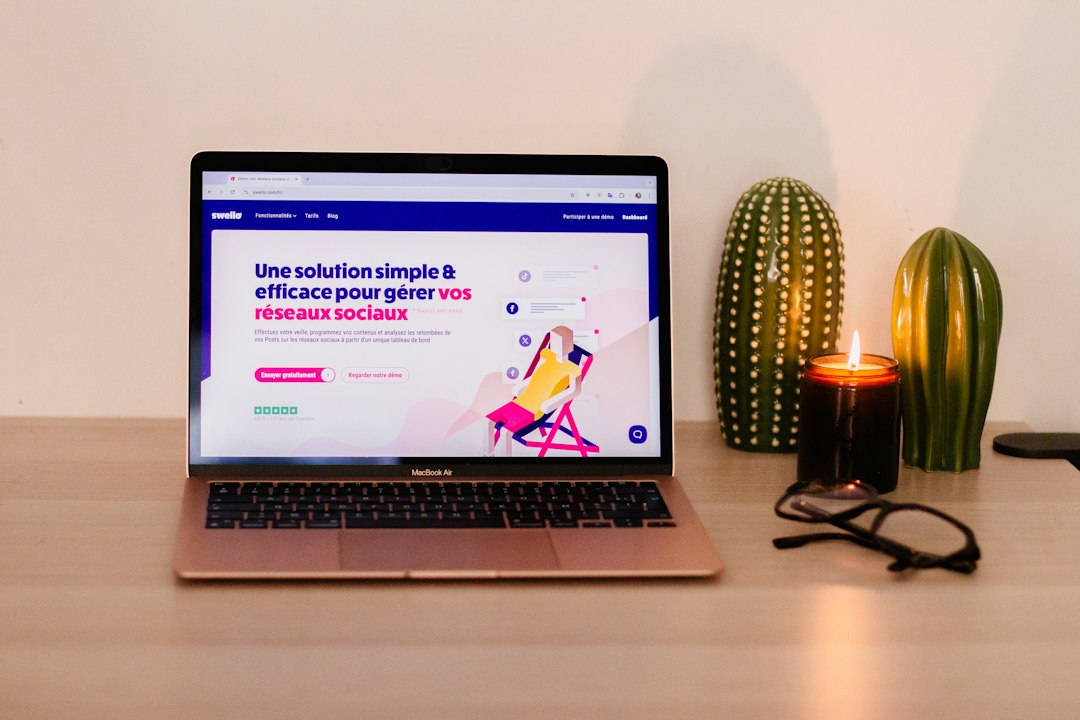
Canva is the easiest tool here. It is friendly. It is fast. It has a huge library of templates, stock images, fonts, shapes, mockups, and layouts.
If you want app screenshots for ads, landing pages, pitch decks, LinkedIn posts, or email banners, Canva is hard to beat.
You can drop your screenshot into a phone frame. Add a gradient. Add a headline. Add a fake hand holding the phone. Boom. It looks good enough to ship.
Best for:
- App Store preview images
- Google Play graphics
- Social media posts
- Launch banners
- Pitch deck slides
- Simple product mockups
What feels great: Canva makes average visuals look polished. Fast. You do not need to be a designer.
What is annoying: Some templates are overused. You may see the same “happy person pointing at phone” vibe everywhere. It drives me a bit nuts when a product visual looks like it came from the same template folder as 900 other startups.
Use Canva when: you need good visuals today. Not next week. Not after six meetings. Today.
Uizard: best for rough ideas and quick wireframes
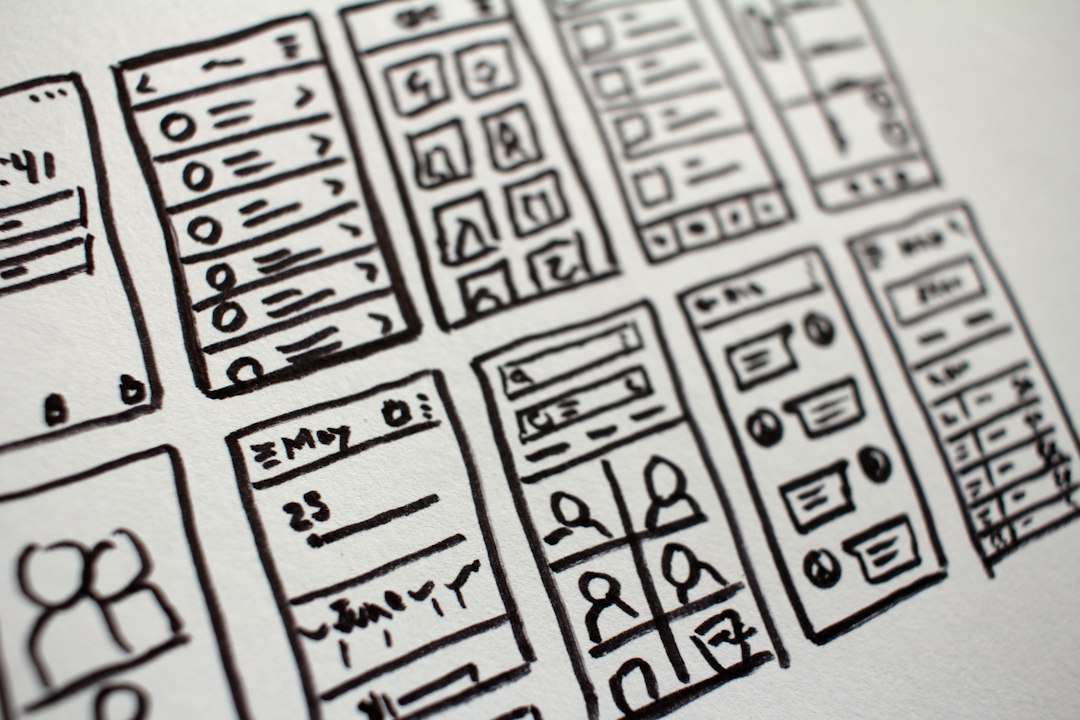
Uizard is great when you have an idea but no screen yet. You can describe what you want. You can turn sketches into wireframes. You can create simple app layouts without starting from zero.
It is not the best final design tool. Figma beats it there. Canva beats it for polished marketing graphics.
But Uizard is fast.
That is the point.
Say you want a food delivery app concept. You can ask for a home screen, menu page, cart page, and checkout page. Uizard can give you a first version quickly. It may not be perfect. It may need cleanup. But it gets the blank page out of your face.
Best for:
- Wireframes
- Early app ideas
- Founder mockups
- Client concept work
- Brainstorming screens
What feels great: It helps non-designers explain an idea. That alone is useful.
What is annoying: The final visuals can feel generic. Expect to spend extra time fixing spacing, hierarchy, and small UI details.
Use Uizard when: speed matters more than polish. It is a great “first draft” tool.
Quick comparison
| Tool | Best use | Skill level | Weak spot |
|---|---|---|---|
| Figma AI | Real app screens and UI flows | Medium | Less simple for quick promo graphics |
| Canva | Marketing visuals and mockups | Easy | Templates can look familiar |
| Uizard | Wireframes and early ideas | Easy | Needs cleanup for final design |
Which one should you choose?
Choose Figma AI if you are building the product, not just selling it. It is the best pick for app screens that must feel real.
Choose Canva if you are promoting the product. It is the fastest way to make screenshots look bright, clean, and ready for the web.
Choose Uizard if the app still lives in your head. It helps you turn ideas into screens before you spend days designing.
Best workflow
- Start in Uizard to map the idea.
- Move to Figma AI to design the real screens.
- Finish in Canva to create promo visuals.
This combo works well for small teams. It also works for solo founders. Uizard helps you think. Figma helps you build. Canva helps you sell.
If you only pick one, pick based on your main job. Designing the app? Figma AI. Marketing the app? Canva. Explaining the idea? Uizard.
Final pick: Figma AI is the best all-around tool for serious app screenshots. Canva is the best for product visuals that need to look sharp fast. Uizard is the best for messy early ideas that need a screen before your coffee gets cold.