
Adobe Color is the strongest choice for accessible UI palettes because it treats contrast and color blindness as part of the color process, not as a cleanup task. For UI text, WCAG AA requires a contrast ratio of at least 4.5:1 for normal text and 3:1 for large text [source: W3C]. Canva Color Wheel is useful for quick harmony ideas. Coolors is fast for generating options. But for serious interface work, Adobe Color gives the safest starting point.
TLDR: Use Adobe Color when accessibility matters most, especially for product dashboards, apps, and design systems. Use Coolors when you need many palette ideas fast, then verify contrast before shipping. Use Canva Color Wheel for simple brand or marketing color exploration, not as your final UI accessibility check. Example: for a checkout page with 12 color pairs, Adobe Color can help flag weak text and button contrast early, while Canva will likely force you to test those pairs somewhere else.
Table of Contents
Best overall: Adobe Color
Adobe Color is the most complete of the three for accessible UI palettes. Its biggest advantage is that it connects palette work with contrast checks and color blindness previews. That matters because a palette can look beautiful and still fail real users.
The tool supports common color harmony rules, such as analogous, monochromatic, triadic, complementary, and compound. That part is expected. The stronger feature is its accessibility section. You can see whether selected colors have enough contrast and how they may appear to users with different types of color vision deficiency.
For UI work, this saves time. You can test a button background against white text. You can compare body text against page backgrounds. You can check chart colors before a developer builds the component. That is the kind of boring detail that prevents expensive fixes later.
Best for:
- Design systems
- SaaS dashboards
- Mobile apps
- Enterprise UI projects
- Teams already using Adobe tools
The downside: Adobe Color can feel heavier than it needs to be for quick palette play. If you only want five nice colors in ten seconds, it may feel slow. Still, for accessible UI work, the extra structure is worth it.
Fastest for ideas: Coolors
Coolors is the speed tool. Press a key, generate a palette, lock a color, repeat. It is simple, fast, and easy to understand. This makes it great when you are stuck at the start of a project and need options quickly.
Coolors also includes helpful tools like a contrast checker, gradient generator, palette visualizer, and export options. You can copy HEX values, save palettes, and share them with a team. For early UI direction, that is very convenient.
Honestly, it feels like Coolors is best when you are still asking, “What should this product feel like?” It is less ideal when you are asking, “Will this disabled button state pass AA against a light gray background?” The answer may be available, but it takes more checking and discipline.
Best for:
- Rapid palette generation
- Moodboards
- Landing page concepts
- Brand exploration
- Freelancers who need quick variations
The annoyance: Expect to waste time on cleanup if you treat generated palettes as ready for production. A five-color palette may contain only two or three colors that work well for readable UI text. The rest may be better for borders, icons, charts, or decorative areas.
Simplest tool: Canva Color Wheel
Canva Color Wheel is the easiest tool in this group. It helps you create color combinations based on classic harmony rules. You pick a color, choose a relationship, and get matching colors. It is clean and beginner friendly.
That simplicity is also the issue. Canva Color Wheel is not built as a full accessibility workflow. It can suggest attractive combinations, but it does not give the same depth of UI-focused contrast testing as Adobe Color. If you choose a blue and Canva gives you a soft yellow, the pair may look pleasant. It still may fail for body text, small labels, or disabled states.
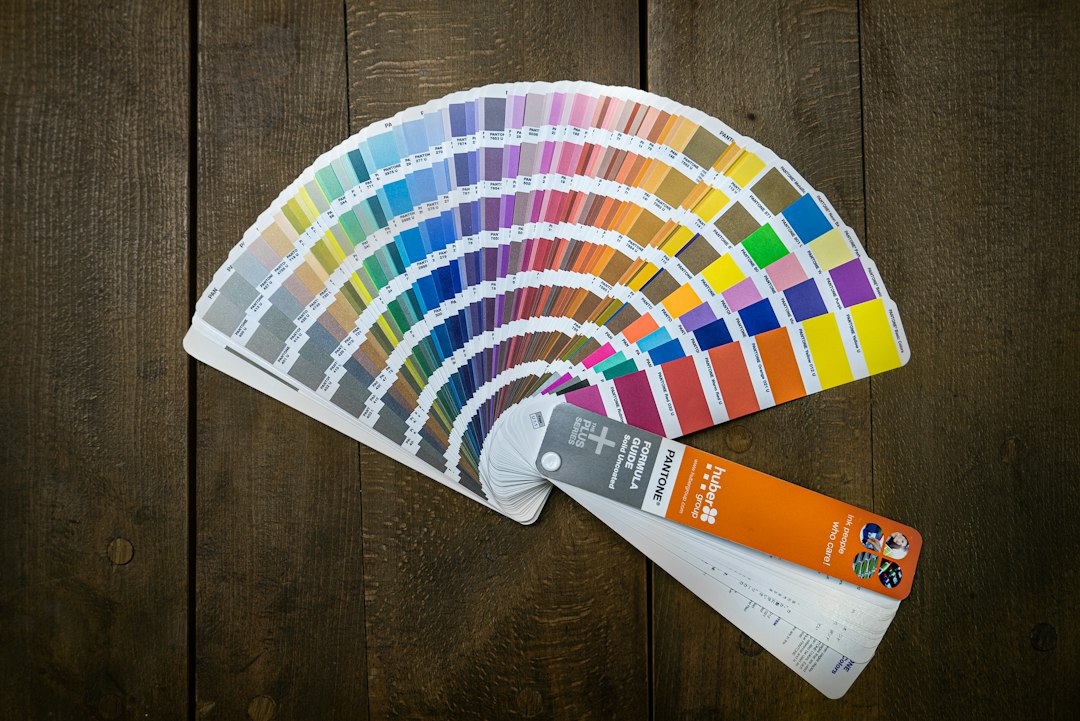
It drives me crazy that tools made for “easy design” often stop right before the hard part. Canva helps you find colors. Then you still have to ask, “Can people actually read this?” That extra step can add 30 to 60 seconds per text and background pair. On a real interface, that adds up fast.
Best for:
- Beginners
- Simple brand palettes
- Social media graphics
- Presentation themes
- Early visual direction
Which one should you choose?
If accessibility is the main goal, choose Adobe Color. It gives you the best balance of palette creation and accessibility review. It is not perfect, but it keeps contrast and color vision checks close to the design process.
If speed is the main goal, choose Coolors. It is excellent for generating many directions. Just do not skip contrast testing. A pretty palette is not the same as a usable interface.
If ease is the main goal, choose Canva Color Wheel. It is good for learning relationships between colors. It is not the tool I would trust alone for a production UI palette.
A practical workflow
- Start with Coolors to generate rough options fast.
- Refine in Adobe Color and test contrast.
- Use Canva Color Wheel only if you need simple harmony ideas or brand-friendly alternates.
- Build UI roles: primary, secondary, background, surface, text, error, warning, success, and focus.
- Test real pairs, not just palette blocks. Text on background matters most.
For most serious teams, the answer is clear. Adobe Color is the best tool for building accessible UI palettes. Coolors is the best idea generator. Canva Color Wheel is the easiest teaching tool. Use each one for the right job, and you will avoid the common mistake: shipping colors that look good in a palette but fail inside the actual product.