
The fastest way to find the default gateway address is to check the active network details on the device. On Windows, the common command is ipconfig, and Microsoft documents “Default Gateway” as part of IP configuration output [source: Microsoft].
TLDR: The default gateway is usually the router’s local IP address, such as 192.168.1.1 or 192.168.0.1. A person may need it to open router settings, fix Wi Fi issues, change DNS, or check connected devices. In a small home network with 10 devices, one wrong gateway setting can stop all devices from reaching the internet. Most users can find it in under 60 seconds on Windows or macOS, while Android may take a little longer because menus vary by phone brand.
Table of Contents
What the Default Gateway Address Means
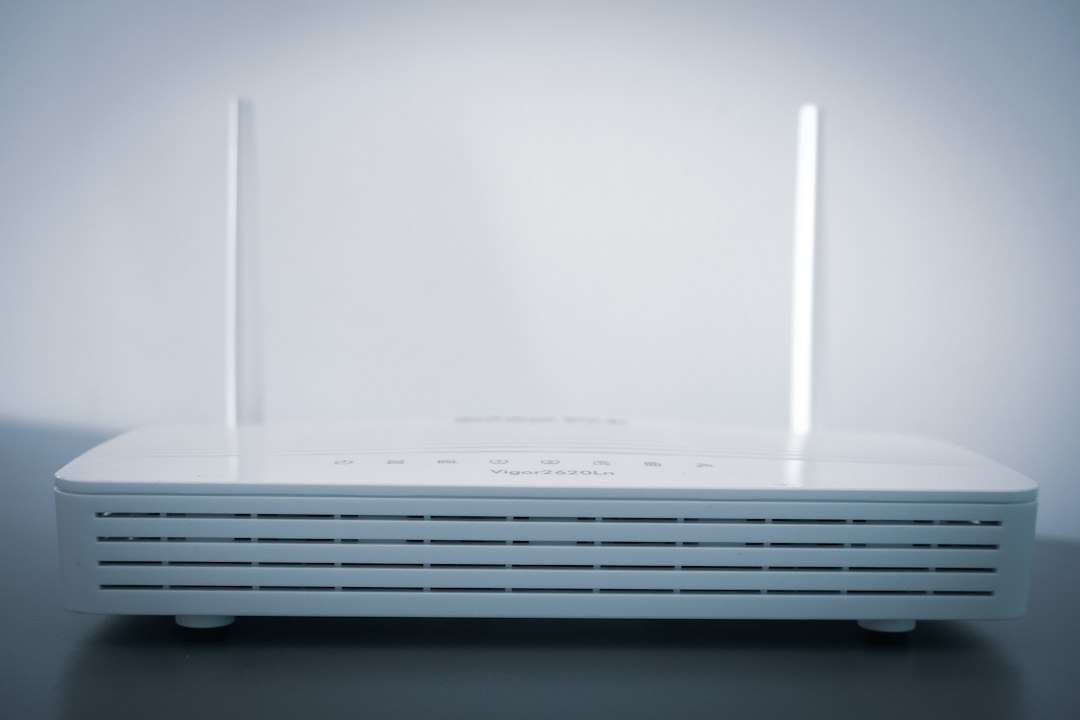
The default gateway is the address a device uses to send traffic outside the local network. In most homes and small offices, that gateway is the router.
If a laptop wants to open a website, it first sends traffic to the router. The router then sends it out to the internet. That is why the gateway address matters when diagnosing slow internet, printer issues, VPN problems, or router login errors.
Common gateway addresses include:
- 192.168.1.1
- 192.168.0.1
- 10.0.0.1
- 192.168.50.1
Honestly, it feels like every router maker hides the same setting in a different place. The good news is that the address is usually easy to spot once the right screen is open.
How to Find the Default Gateway on Windows
Windows offers two simple methods. The Command Prompt method is usually faster.
Method 1: Use Command Prompt
- Press Windows + R.
- Type cmd and press Enter.
- Type ipconfig and press Enter.
- Find the active adapter, such as Wi Fi or Ethernet.
- Look for Default Gateway.
The value beside Default Gateway is the router address. For example, it may show 192.168.1.1.
Method 2: Use Settings
- Open Settings.
- Select Network & Internet.
- Choose Wi Fi or Ethernet.
- Open the active connection details.
- Find the gateway listed under IP details.
This method works, but it often takes more clicks than it should. Expect to waste 20 to 30 extra seconds if Windows opens the wrong network panel first.
How to Find the Default Gateway on macOS
On macOS, the gateway address is usually called the Router address.
- Open System Settings.
- Click Network.
- Select the active connection, such as Wi Fi.
- Click Details.
- Open TCP/IP.
- Check the address beside Router.
Older macOS versions may use System Preferences instead of System Settings. The label still tends to be Router, not default gateway.

How to Find the Default Gateway on Android
Android menus change by brand. Samsung, Google Pixel, OnePlus, Xiaomi, and Motorola may place network details in slightly different spots. Still, the idea is the same.
- Open Settings.
- Tap Network & Internet or Connections.
- Tap Wi Fi.
- Select the connected Wi Fi network.
- Open Network details, Advanced, or a similar option.
- Look for Gateway or Router.
Some Android phones show only the device IP at first. If so, switching from basic to advanced network details may reveal the gateway. Google’s Android Help explains that Wi Fi settings differ by Android version and device maker [source: Google].
How to Find It Through Router Settings
The router itself can also show its gateway or LAN address. This works best when the person already knows how to open the router admin page.
- Open a browser.
- Enter a common router address, such as 192.168.1.1 or 192.168.0.1.
- Sign in with the router admin details.
- Open LAN, Network, or Internet settings.
- Check the router IP, LAN IP, or gateway field.
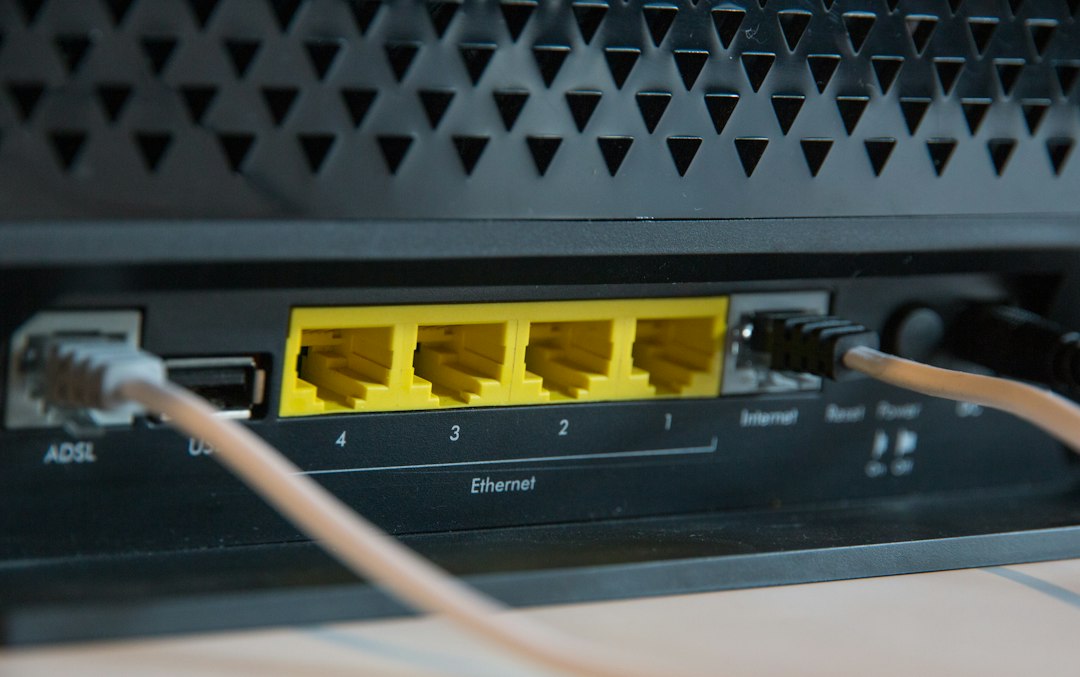
If the login fails, the router label may help. Many routers print the default IP, username, and password on the bottom or back. If the password was changed and lost, a reset may be needed. That should be a last resort because it can erase Wi Fi names, passwords, and custom settings.
Common Problems and Quick Fixes
- No gateway appears: The device may not be connected to the network.
- Gateway is blank: Restart the device and reconnect to Wi Fi.
- Multiple gateways appear: Check the active adapter only. VPNs and virtual adapters can add confusion.
- Router page will not open: Try http:// before the IP address.
- Wrong network is selected: Confirm the device is connected to the home or office Wi Fi, not a guest network.
FAQ
What is a default gateway address?
It is the local address of the router or network device that sends traffic from the local network to other networks, including the internet.
Is the default gateway the same as the router IP?
In most home networks, yes. The default gateway is usually the router’s local IP address.
Can the default gateway address change?
Yes. It can change if the router settings are changed, a new router is installed, or the device joins a different network.
Why does Windows show more than one adapter?
Windows may list Wi Fi, Ethernet, VPN, Bluetooth, and virtual adapters. The correct gateway is usually under the adapter currently connected to the internet.
What should someone do if the gateway address does not work in a browser?
They should check the address again, try another browser, add http://, disconnect any VPN, and confirm the device is on the correct network.