
Use iOS 18 App Lock first if your goal is privacy. It is the cleanest way to stop someone from opening Photos, Messages, banking apps, or social apps while your phone is unlocked. Apple says locked apps can require Face ID, Touch ID, or a passcode, and some apps can also be hidden in a locked folder [source: Apple].
TLDR: App Lock is best for private apps you still use often. Hidden Apps is better when you do not want an app icon, notifications, or search results showing up. Screen Time is better for children, shared family devices, or cutting usage; for example, a parent can set a 1 minute daily limit on TikTok and protect the setting with a Screen Time passcode.
Table of Contents
What each method actually does
Apple now gives iPhone owners three practical ways to reduce app access. They sound similar, but they solve different problems. Mixing them up leads to weak privacy and wasted time.
- App Lock: blocks an app from opening unless Face ID, Touch ID, or the device passcode is approved.
- Hidden Apps: removes supported apps from normal view and places them in a locked Hidden folder.
- Screen Time: limits app use with schedules, daily limits, restrictions, and a separate Screen Time passcode.
Option 1: App Lock on iPhone
App Lock is the strongest everyday choice. It is made for moments when your phone is already unlocked but you still want a private wall around certain apps.
To lock an app on iOS 18, press and hold the app icon. Tap Require Face ID, Require Touch ID, or the matching security option shown on your iPhone. Confirm the choice. From then on, opening the app requires authentication.
This works well for:
- Banking and payment apps
- Photos and private albums
- Messages and email
- Health, notes, and password tools
- Dating apps or work apps
The catch is that not every app behaves the same way. Some Apple apps may not support hiding. Some alerts or background activity may still exist in limited form. Test the app after locking it. Do not assume it is fully quiet until you check notifications, widgets, and Siri suggestions.
Option 2: Hidden Apps
Hidden Apps is for secrecy, not just safety. A hidden app is removed from the Home Screen and placed in the Hidden folder inside the App Library. That folder requires authentication before it opens.
This is useful if you do not want someone to notice the app at all. For example, you might hide a finance app, a medical app, or a private messaging app before handing your phone to a coworker for a quick call.
To hide a supported app, press and hold the app icon. Choose the option to require Face ID, then select Hide and Require Face ID when available. The app moves to the Hidden folder.
Honestly, it feels like Apple could make this easier to find. The Hidden folder sits at the bottom of the App Library, so expect to spend a few extra seconds getting there until it becomes habit.
Option 3: Remove from Home Screen
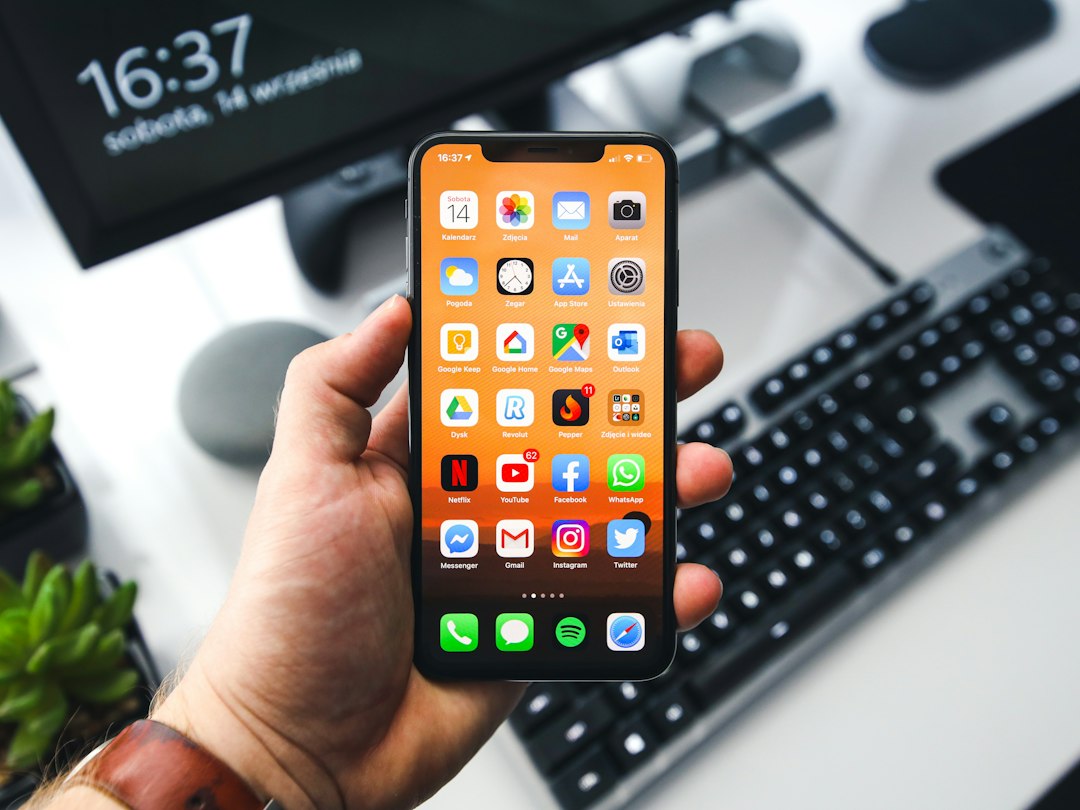
This is the weakest option, but it still has a place. Press and hold an app, tap Remove App, then choose Remove from Home Screen. The app stays installed. It can still appear in Search and the App Library unless other controls are used.
Use this only for cleanup. It is not real privacy. Anyone who knows how to search the iPhone can still find the app in seconds.
Option 4: Screen Time
Screen Time is best for rules and habits. It is not a pure app lock, but it can block or limit apps after a set amount of use. It is especially useful for parents or for people trying to cut down on social media.
Go to Settings > Screen Time. Turn it on, set a Screen Time Passcode, then use App Limits, Downtime, or Content & Privacy Restrictions. Apple also explains that App Limits can apply across categories or selected apps [source: Apple].
A common setup is simple: set Instagram, TikTok, and YouTube to 30 minutes per day. Protect the rule with a Screen Time passcode. After the limit is reached, the phone blocks the apps unless the passcode is entered.
It drives me crazy that Screen Time can feel more like a parenting tool than a privacy tool. Still, it works if your real problem is overuse, not snooping.
Which one should you use?
| Need | Best choice |
|---|---|
| Stop someone opening an app | App Lock |
| Hide the app icon | Hidden Apps |
| Reduce daily app use | Screen Time |
| Clean up the Home Screen | Remove from Home Screen |
Practical recommendation
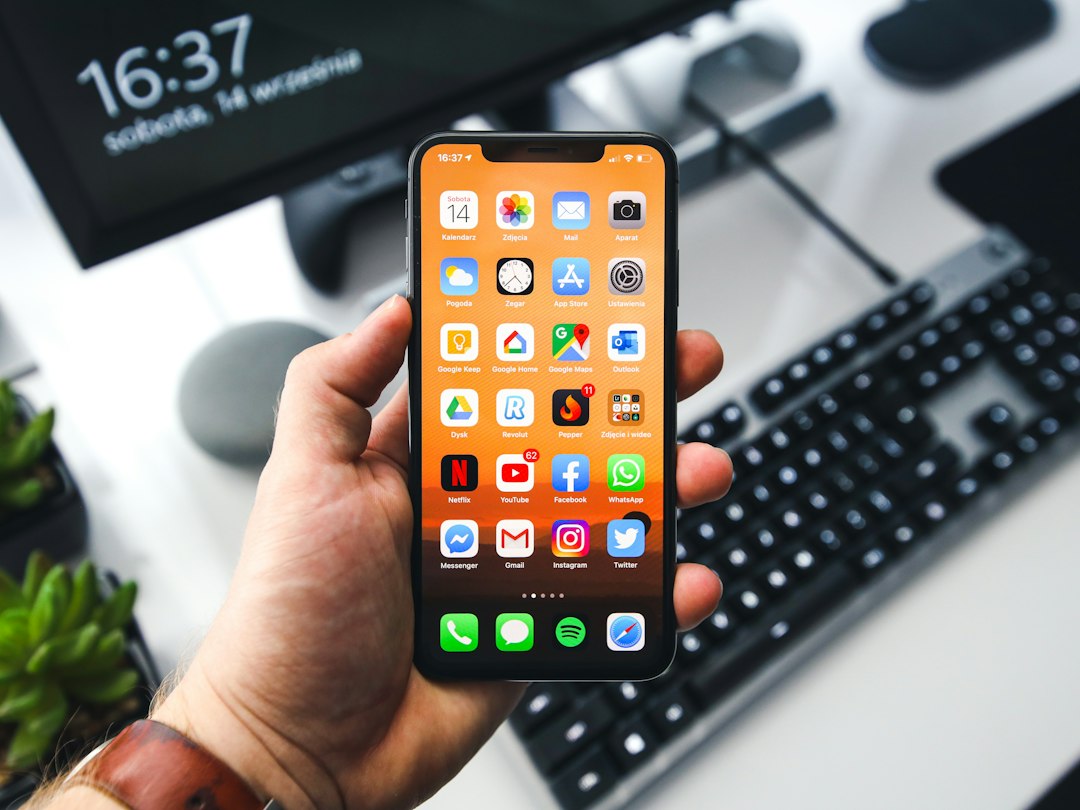
For most adults, use App Lock on sensitive apps first. Then hide only the apps you do not want visible. Add Screen Time if you need usage limits or family controls.
For a child’s iPhone, start with Screen Time. Set a passcode the child does not know. Then use App Limits and Content & Privacy Restrictions. If the child also has private apps, add App Lock where needed.
For a shared device, combine all three. Lock private apps. Hide apps that should not appear casually. Use Screen Time to block risky app categories after certain hours.
The safest setup is layered. App Lock stops access. Hidden Apps reduces visibility. Screen Time controls behavior. None is perfect alone, but together they give an iPhone owner much better control without installing third party security apps.