

You’re ready to dive into a new course on Coursera. You’ve got your coffee, you’re pumped to learn… and then it happens. The page keeps reloading! It’s like trying to read a book on a windy day. Very frustrating.
Table of Contents
TLDR:
If Coursera keeps reloading, it’s usually because of browser issues, cache or cookie problems, slow internet, or extensions messing things up. This can usually be fixed by updating your browser, clearing cookies, or disabling extensions. It’s annoying, but not permanent. Follow some simple tips to get back to learning smoothly.
What’s Causing the Madness?
This might surprise you, but Coursera isn’t really trying to ruin your day. The constant refreshing or reloading page issue is often caused by things outside Coursera’s control. Here are the main suspects:
1. Outdated Browser
If your browser is old and cranky, Coursera might not play nice with it. Modern websites need modern browsers to run properly. If your browser is from 2015, it might see Coursera as an alien language.
2. Corrupted Cache or Cookies
Browsers save little files to remember websites. This is called caching. But sometimes, that memory goes wonky. When that happens, your browser gets confused when loading Coursera. Result? Reload city.
3. Browser Extensions
Some browser extensions are great. Others act like overprotective parents, blocking stuff you actually need. If an extension messes with cookies, scripts, or trackers, Coursera might keep trying to load and reload itself.
4. Internet Woes
Slow or unstable internet? Then Coursera might be reloading because it can’t complete loading a page. Every time it tries, boom—error. So it tries again. And again. It’s like a toddler asking the same question until you answer.
5. Device Compatibility
Using Coursera on a really old phone or a device that’s not fully supported? That could be the cause too. Some older devices have a hard time keeping up with all the dynamic parts of a modern online course platform.
6. Server Issues (Rare But Possible)
Sometimes, the problem is on Coursera’s end. Their servers may have hiccups. It’s rare, but it happens. Just like people, even servers have bad days.

How to Fix It – Step by Step
Alright, time to fix this. Let’s troubleshoot like tech wizards—using simple steps anyone can follow.
Step 1: Update Your Browser
Go to your browser settings. Look for an “Update” button. If it says your browser is up to date, you’re good. If not, update it! Modern sites work best with the newest browser versions.
Step 2: Clear Cache and Cookies
This may sound scary but it’s simple:
- Go to browser settings
- Look for “Privacy” or “History” section
- Click “Clear browsing data”
- Select “Cookies and Cached Images”
- Click “Clear data”
This tells your browser, “Forget everything you know about Coursera—and start fresh.”
Step 3: Try Another Browser
Still reloading? Open Coursera in a different browser. Try switching from Chrome to Firefox, or from Safari to Edge. If it works there, the problem is probably with the original browser settings or extensions.
Step 4: Disable Extensions
Too many extensions can make a site like Coursera throw a fit. Time to tell them to take a break:
- Go to extensions menu in your browser
- Disable all of them
- Reload Coursera
If it works now, turn each extension back on one by one. When the page starts reloading again—you’ve found your culprit!
Step 5: Check Your Internet Connection
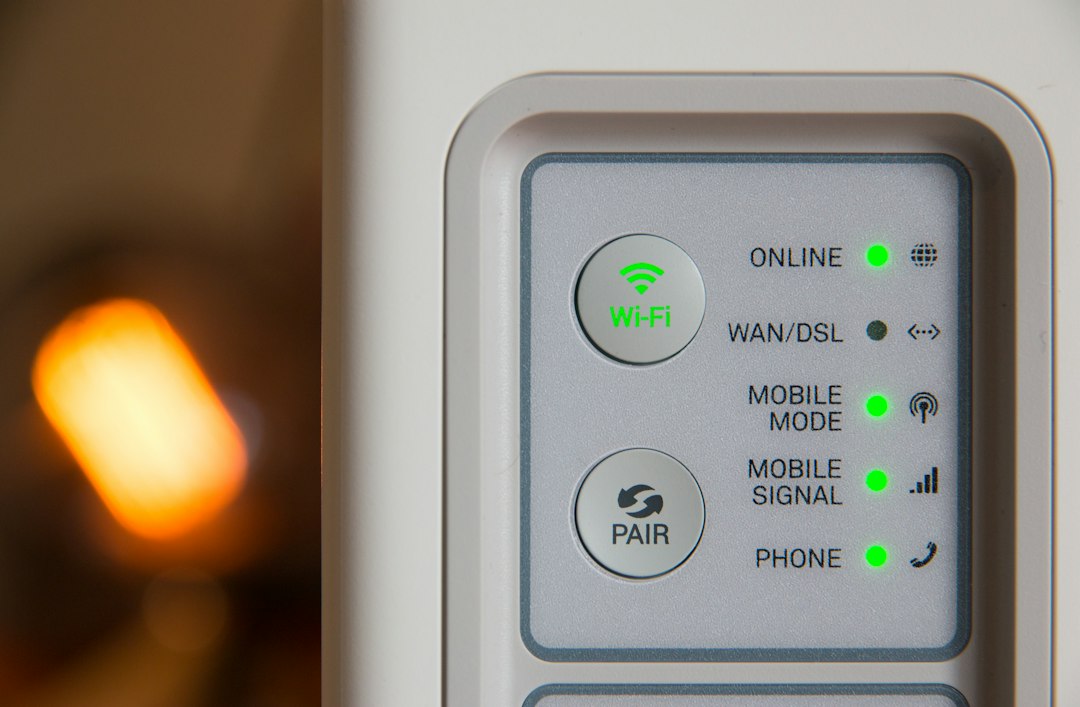
Slow or unstable Wi-Fi can make Coursera stutter. Use this checklist:
- Run a speed test (just Google “internet speed test”)
- Restart your router
- Try switching to mobile data or another network
Better connection = smoother sailing.
Step 6: Use Incognito or Private Mode
Your browser’s private or incognito mode disables most cookies and extensions by default. Try logging into Coursera from this mode. If it loads fine, bugs are hiding in your regular browser mode.
Step 7: Try Another Device
Borrow a friend’s phone or laptop. Open Coursera. If it works there, the trouble likely lies in your personal device settings or app installation.
Step 8: Check Coursera’s Status
Still no luck? Visit status.coursera.org to check if Coursera is having wider system issues. You can also search on Twitter to see if others are reporting the same issues.
Extra Tips for a Smooth Coursera Experience
- Keep your browser and apps updated regularly
- Don’t run 20 tabs at once (unless you’re into chaos)
- Restart your device from time to time, it’s good for it!
- Clear cookies monthly if you browse a lot
- Avoid using VPNs unless necessary—some may confuse Coursera’s server
When Nothing Works…
If you’ve tried it all and Coursera is still playing the reload game, it’s time to call in the experts—Coursera Support.
Go to their Help Center and explain your issue. They usually respond quickly and can check if something’s wrong on your account.
Be sure to tell them:
- What device and browser you’re using
- Steps you’ve already tried
- When the issue started
Final Thoughts
It’s annoying when a site keeps refreshing. Especially when you’re just trying to learn something new. But most of the time, it’s fixable—and doesn’t take long. Get rid of those reloads, and let your brain enjoy its learning journey without interruptions!
Now go forth, learner! May your pages load fast and your internet stay strong.