
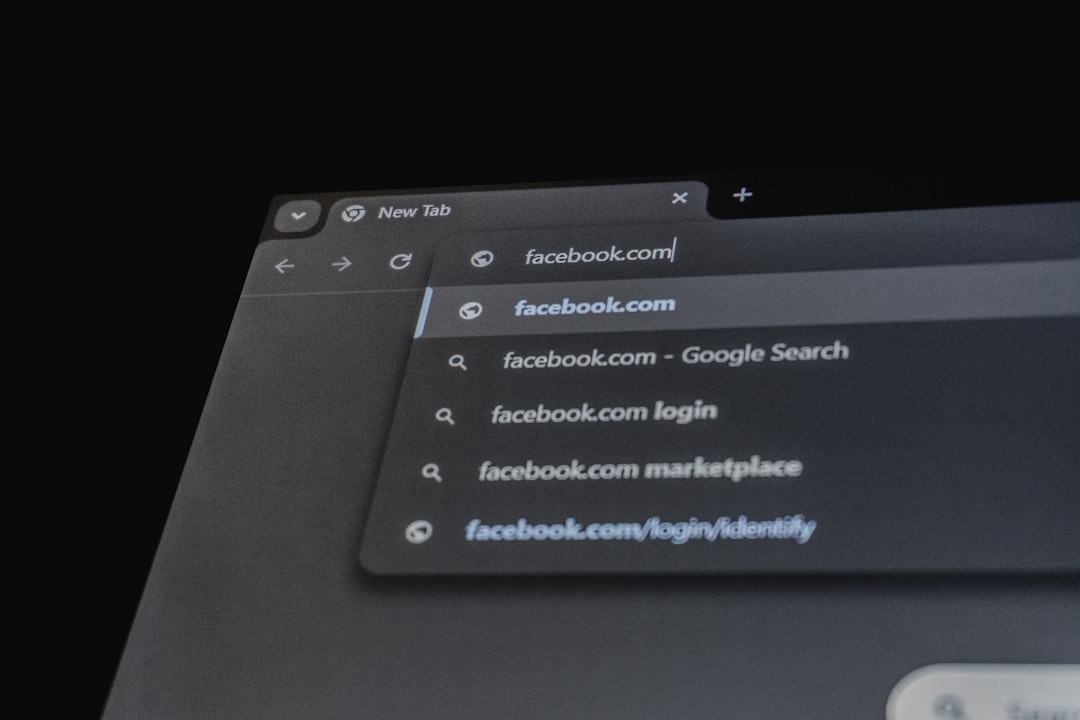
Ever scrolled through Facebook and had your peace interrupted by a loud video auto-playing out of nowhere? You’re not alone. It’s not just annoying—it can also eat through your data and drain your battery. But don’t worry! Turning off Facebook’s auto-play feature is easier than you think.
Table of Contents
TL;DR
Too long, didn’t read? Here’s the short version: You can stop Facebook videos from auto-playing in just a few taps. Go to settings > media or video settings > turn off auto-play. Whether you’re on iPhone, Android, or using a browser, we’ve got you covered. Keep scrolling for the full walkthrough!
Why Does Facebook Auto-Play Videos Anyway?
Good question! Facebook thinks it grabs your attention. They want those extra seconds of your eyes on the content. Sure, sometimes it works—but most of the time, it’s just loud, distracting, and unnecessary.
Let’s Put an End to It, Shall We?
Alright. Depending on how you use Facebook (phone or computer), there are different ways to stop the madness. Let’s break it down.
If You’re Using Facebook on an Android Phone:
- Open the Facebook app.
- Tap the menu icon (three horizontal lines in the corner).
- Scroll down and tap Settings & Privacy then Settings.
- Look for Media or Videos and Photos.
- Tap Autoplay.
- Select Never Autoplay Videos.
And that’s it! No more videos springing to life when you least expect it.
Using an iPhone or iPad?
No problem—pretty similar process. Here’s what to do:
- Open the Facebook app.
- Tap the menu (three lines).
- Go to Settings & Privacy, then Settings.
- Scroll down to find Media.
- Tap Autoplay.
- Choose Never Autoplay Videos.
Voilà! Now your battery and sanity are safe.
On a Computer or in a Web Browser?
Watching Facebook on your laptop or desktop? Here’s how to stop auto-play there:
- Go to facebook.com and log in.
- Click your profile picture at the top right.
- Select Settings & Privacy → Settings.
- Look in the left sidebar and click Videos (near the bottom).
- Next to Auto-play Videos, click the drop-down and choose Off.
That’s all! So simple it’s almost suspicious.
Bonus Tip: Save Your Data
Frequent scroller on mobile data? Auto-play isn’t just annoying—it also sneaks into your data plan like a thief in the night. Turning this off helps stretch those precious megabytes.
Oh No, I Don’t See the Option!
If you can’t find the autoplay setting, don’t panic. Sometimes Facebook moves things around (thanks, Zuck). Try updating your app. Or scroll a bit slower—some options are buried deep.
Want a Bit More Control?
If you don’t want to completely turn off autoplay, there’s a middle ground. You can choose:
- On Wi-Fi only – Videos will auto-play only when you’re on Wi-Fi.
- On mobile data and Wi-Fi – (not recommended!)
- Never – Our personal favorite!
Why You Should Turn It Off
Still not sure? Here’s a quick list of why you should hit that “off” switch:
- Peace and quiet – No more surprise music in public places.
- Better battery life – Your phone will thank you.
- Use less data – Important if you’re not on unlimited!
- More control – You decide what you watch, not Facebook.
Still Seeing Videos Play?
Sometimes, Facebook’s changes take a bit of time. Try closing and reopening the app. Or even restarting your phone. The settings usually kick in right after that.
Want to Go Even Further?
If you’re really annoyed, consider adding browser extensions like:
- uBlock Origin – Blocks auto-plays and even ads.
- Video Blocker – Hide certain types of videos entirely.
Just make sure you trust the extensions you install. Read the reviews!
Wrap-Up: You’re in Control Now
Look at you! You’ve taken back the power. Now Facebook bows to your settings. No more awkward video blasts in waiting rooms or waking up your cat with loud cooking videos.
Remember: Technology should work for you—not against you. Go ahead and scroll in peace!