

Imagine grabbing useful data from any website in minutes. No coding. No stress. Just point, click, and collect. That is the magic of an instant data scraper.
TLDR: You can build a no-code instant data scraper using simple browser extensions or online tools. You choose the website, click on the data you want, and export it to a spreadsheet. No programming skills are required. With a few smart steps, you can turn messy web pages into clean, organized data.
Table of Contents
What Is an Instant Data Scraper?
An instant data scraper is a tool that pulls information from websites automatically. It turns web content into structured data. Think neat rows and columns. Like a spreadsheet.
You can scrape things like:
- Product names and prices
- Email addresses
- Phone numbers
- Job listings
- Real estate listings
- Reviews and ratings
And the best part? You do not need to write a single line of code.
Why Use a No-Code Scraper?
Because it saves time. A lot of time.
Copying and pasting data manually is slow. It is boring. And mistakes happen. A scraper does it in seconds.
Here is why people love no-code scrapers:
- Easy to use
- No technical knowledge needed
- Fast results
- Works directly in your browser
- Exports to CSV or Excel
If you can click a mouse, you can scrape data.
Step 1: Choose the Right Tool
First, you need a no-code scraping tool. Many come as browser extensions. Others work as web apps.
Look for tools that:
- Work with Chrome or your preferred browser
- Allow point-and-click selection
- Offer automatic pattern detection
- Let you export data easily
Most tools have free versions. That is perfect for getting started.
After installing the extension, you will see a small icon in your browser toolbar. That is your new best friend.
Step 2: Go to the Website You Want to Scrape
Now comes the fun part.
Visit the webpage that contains the data you want. This could be:
- An online store
- A job board
- A directory
- A listings site
Make sure the data is visible on the page. If it requires login access, log in first.
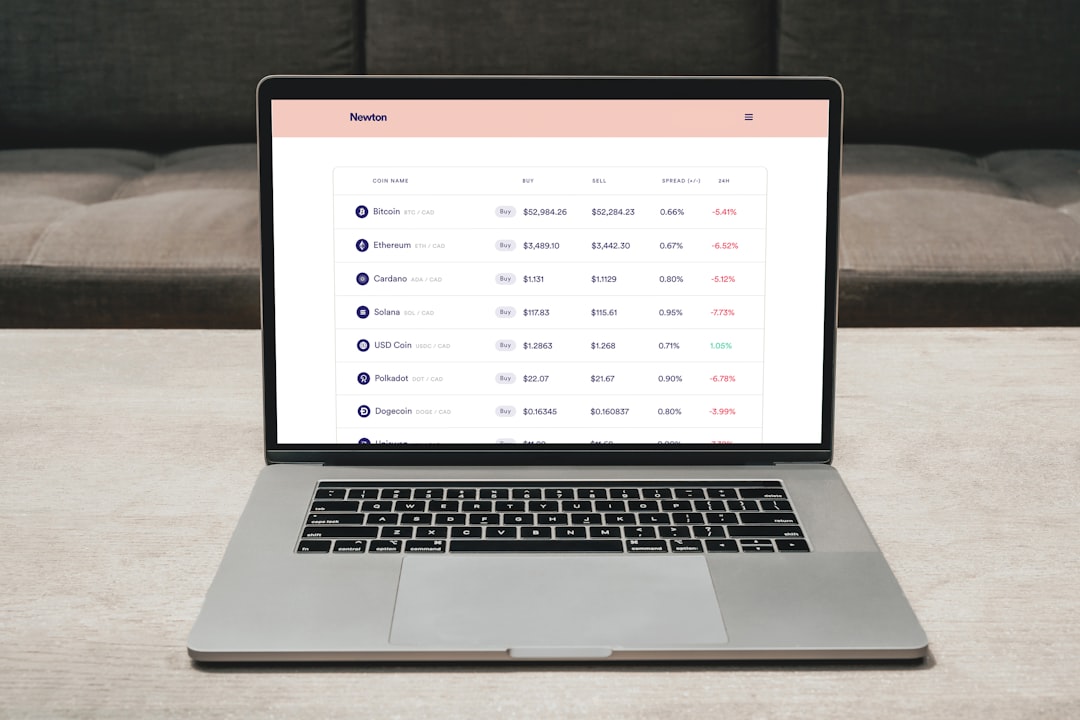
For example, imagine you want to collect product names and prices from an online shop category page.
Step 3: Activate the Scraper
Click the scraper extension icon.
The tool will scan the page automatically. Many instant scrapers are smart. They detect repeating patterns. Like product cards. Or job listings.
In seconds, it may highlight similar items on the page.
This is called automatic pattern recognition. Sounds fancy. It just means the tool notices structures that repeat.
If the auto-detection looks correct, great. If not, do it manually.
Step 4: Select the Data You Want
This is usually point and click.
Click on a product title. The tool will often highlight all similar titles.
Then click on a price. It will detect all prices.
You are basically teaching the scraper what to look for.
Common fields to select:
- Name or title
- Price
- Description
- Rating
- Image URL
As you select data, you will usually see a preview table. This table shows you exactly what is being captured.
Check it carefully. Make sure the columns look clean. No weird gaps. No missing values.

Step 5: Handle Multiple Pages
What if the data is spread across many pages?
No problem.
Most no-code scrapers support pagination. That means they can move from page 1 to page 2 automatically.
Look for a setting like:
- Next page button selection
- Pagination setup
- Auto-scroll for infinite pages
Click the “Next” button on the website. Tell the scraper that this is the pagination link. The tool will then follow it again and again.
This allows you to scrape:
- Hundreds of products
- Thousands of listings
- Entire directories
All in one run.
Step 6: Run the Scraper
Time to collect the data.
Click the “Start” or “Scrape” button.
The tool will begin extracting data from each page. You might see it navigate automatically.
Sit back. Watch the rows increase.
Depending on the amount of data, this can take seconds or a few minutes.
Do not close the browser tab while it runs.
Step 7: Export Your Data
Once the scraping is done, export your data.
Most tools allow formats like:
- CSV
- Excel (XLSX)
- Google Sheets
- JSON
CSV is the most common. It opens easily in Excel or Google Sheets.
Click export. Download the file. Open it.
Now you have structured data ready to use.

Cleaning Your Data
Sometimes data needs a little cleanup.
You might notice:
- Extra spaces
- Currency symbols
- Duplicate rows
- Empty cells
This is normal.
Use spreadsheet tools to:
- Trim spaces
- Filter duplicates
- Sort values
- Format numbers properly
In just a few minutes, your messy web data becomes powerful insight.
Smart Tips for Better Scraping
Here are some pro tips. Simple but powerful.
1. Start small
Test scraping on one page first. Make sure everything works.
2. Check website rules
Always respect website terms of service. Some sites restrict scraping.
3. Avoid scraping too fast
Some tools allow speed control. Slower scraping looks more natural.
4. Use consistent page layouts
Scrapers work best when pages follow the same structure.
5. Save your scraping setup
Many tools let you save configurations. So you can reuse them later.
Common Mistakes to Avoid
Even no-code scraping has pitfalls.
Watch out for these:
- Dynamic content that loads after scrolling
- Pop-ups blocking access
- Login timeouts
- Changing website layouts
If your scraper suddenly stops working, the website structure may have changed. Simply reselect the data fields.
Fun Ways to Use Scraped Data
Now that you have the data, what can you do with it?
- Compare competitor prices
- Build email outreach lists
- Analyze job market trends
- Track product availability
- Create business directories
- Do academic research
Data is powerful. Organized data is even more powerful.
Is No-Code Scraping Enough?
For most beginners, yes.
If you are collecting basic structured data from public websites, no-code tools are perfect.
However, advanced cases may require coding. For example:
- Heavy anti-bot protection
- Complex login systems
- Deep website navigation
But do not worry about that now. Start simple. Learn the basics. Grow from there.
How Long Does It Take to Learn?
Honestly? About 15 minutes.
Install the tool. Click around. Test it on a sample website.
That is it.
The hardest part is usually deciding what data you actually need.
Final Thoughts
Making an instant data scraper with no code is easier than ever. You do not need to be a developer. You do not need special skills.
You only need:
- A browser
- A scraping extension
- A clear goal
Click. Select. Export.
That is the process.
Once you try it, you will wonder how you ever lived without it.
Data is everywhere. Now you know how to collect it. Simply. Quickly. And without writing a single line of code.