
Sharing your location through Find My iPhone can be incredibly useful—until you want a little privacy without triggering notifications or raising suspicion. Whether you’re planning a surprise, taking personal time, or simply want more control over your digital footprint, understanding how Apple’s location sharing works is essential. The good news? There are several ways to pause or limit location visibility—though each method comes with nuances worth knowing.
TLDR: You can pause location sharing on Find My iPhone without directly alerting others by turning off Share My Location, enabling Airplane Mode, disabling specific location services, or using another Apple device as your location source. Each method affects visibility differently, and some may display “Location Not Available.” The key is choosing the option that fits your situation while maintaining privacy and minimizing suspicion.
Table of Contents
Understanding How Find My Location Sharing Works
Before diving into how to pause location sharing discreetly, it helps to understand how Apple’s Find My network operates. The Find My app allows you to share your real-time location with:
- Family members
- Friends
- Contacts you manually approve
Once enabled, your location updates dynamically as long as:
- Your device is powered on
- It has an internet connection
- Location Services are enabled
- Share My Location is turned on
If you make changes, the system doesn’t typically send a push notification stating, “This person turned off their location.” However, others may notice indicators like “Location Not Available.” That’s why subtlety matters.

Method 1: Turn Off “Share My Location”
This is the most straightforward way.
How to Do It:
- Open Settings
- Tap your Apple ID name at the top
- Select Find My
- Tap Share My Location
- Toggle it off
What Happens:
- Your location stops updating immediately.
- People you share with will see “Location Not Available.”
- No automatic alert tells them you turned it off.
Pros:
- Quick and simple
- No notifications sent
Cons:
- The status change is visible
- May raise questions if it happens suddenly
Best for: Short-term pauses where subtlety is helpful but not critical.
Method 2: Enable Airplane Mode
Airplane Mode temporarily disables all wireless connections, including:
- Cellular data
- Wi-Fi
- Bluetooth (unless manually re-enabled)
How to Activate:
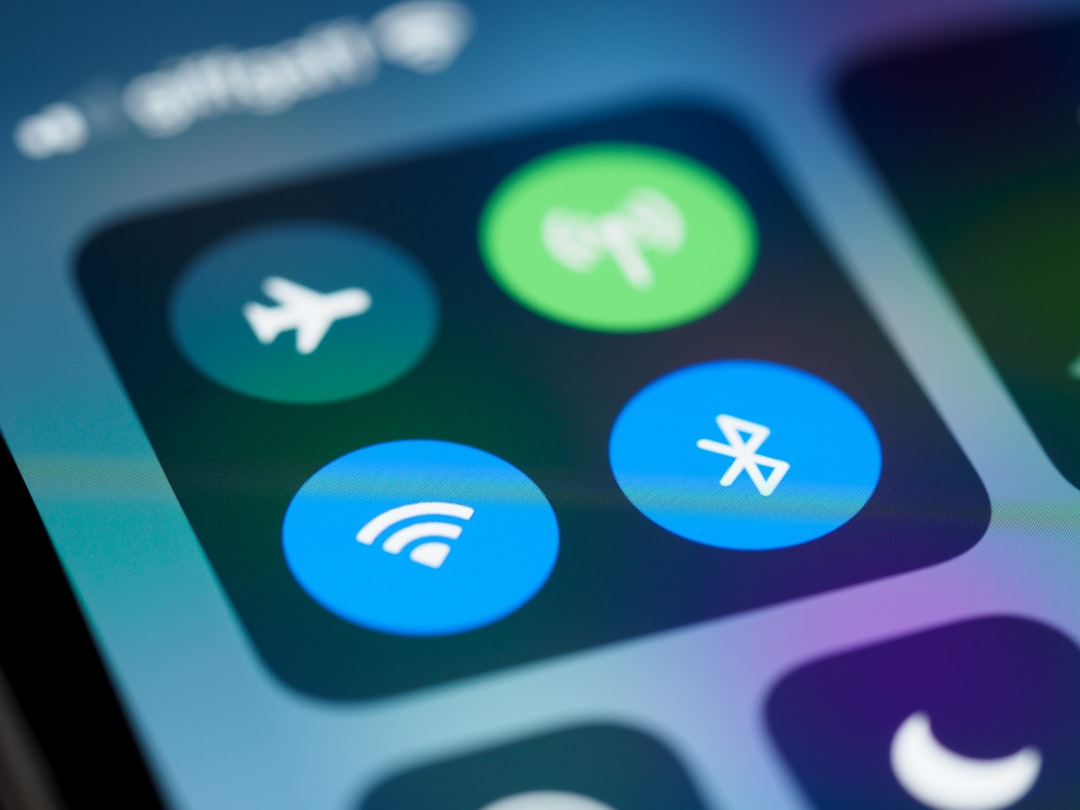
- Swipe down from the top-right corner (Control Center)
- Tap the Airplane icon
What Others See:
Your location freezes at your last known position. Eventually, it may show “Location Not Available.”
Why It’s Discreet:
From the outside, it appears your phone simply lost signal or battery.
Drawbacks:
- You won’t receive calls or messages
- Internet access is disabled
Pro Tip: You can turn Airplane Mode on and then manually re-enable Wi-Fi. However, doing so may update your location if Find My still has access.
Method 3: Turn Off Location Services for Find My Only
Instead of disabling system-wide sharing, you can restrict access for the Find My app specifically.
Steps:
- Open Settings
- Tap Privacy & Security
- Select Location Services
- Scroll to Find My
- Choose Never
What Happens:
The app can no longer access your live location. Others may eventually see that it’s unavailable.
Advantages:
- More targeted control
- Other apps (like Maps) can still function if configured separately
Disadvantages:
- Status visibility remains
- May affect other Apple tracking features
Method 4: Use Another Apple Device as Your Location
This is one of the most strategic options available.
If you own multiple Apple devices—like an iPad or secondary iPhone—you can set a different device as your location source.
How It Works:
- Open Find My on the secondary device
- Tap Me
- Select Use This Device as My Location
Your shared location will now display the position of that device instead of your primary phone.
Why This Works Well:
- No “Location Not Available” message
- No interruption in sharing
- Appears completely normal
Important Considerations:
- The secondary device must remain powered on
- It needs an internet connection
This is often the least suspicious way to pause your real movement tracking.

Method 5: Stop Sharing with a Specific Person
If you only want to pause sharing with one individual, you can do so directly.
Steps:
- Open Find My
- Tap People
- Select the person’s name
- Choose Stop Sharing My Location
What Happens:
They will receive a notification that you stopped sharing location with them.
Note: This method is not discreet, but it gives you selective control.
Common Myths About Pausing Location
Myth 1: The Other Person Gets an Immediate Alert
In most cases, Apple does not send a push notification when you disable Share My Location globally. They only notice when checking the app.
Myth 2: You Can “Freeze” Your Location Without It Showing
There is no official “freeze” button. If your location stops updating, the system eventually reflects that.
Myth 3: Deleting the App Stops Sharing
Location sharing is tied to your Apple ID, not just the app. Removing Find My does not automatically stop sharing.
What Others Actually See
Depending on the method used, contacts may see:
- Last known location with timestamp
- “Location Not Available”
- No change at all (if using another device)
Apple prioritizes privacy, so features are designed without accusatory alerts. However, visibility transparency still exists.
Balancing Privacy and Trust
While it’s technically possible to pause location discreetly, there’s a broader consideration: why you’re sharing location in the first place.
Location sharing is commonly used for:
- Family safety
- Child monitoring
- Travel coordination
- Emergency tracking
If privacy needs change, open communication is often the healthiest long-term solution. That said, personal digital boundaries are valid.
Best Method Based on Your Goal
Here’s a quick comparison:
- Quick temporary privacy: Airplane Mode
- Short pause without notification: Turn off Share My Location
- Maintain appearance of sharing: Switch location to another Apple device
- Selective sharing control: Stop sharing with one person
Your ideal choice depends entirely on:
- How long you need privacy
- Whether others check frequently
- Whether you have multiple devices
Important Ethical and Safety Considerations
It’s crucial to clarify: pausing your location should never be used to avoid accountability in harmful or dangerous situations.
Location tools are often shared for:
- Mutual trust
- Parental guidance
- Personal safety agreements
If location sharing feels intrusive or uncomfortable, adjusting settings permanently may be healthier than repeatedly disabling them without discussion.
Final Thoughts
Apple’s Find My ecosystem offers remarkable tracking precision—but it also provides meaningful privacy controls if you know where to look. While there’s no invisible pause button, methods like disabling Share My Location, using Airplane Mode, or switching devices allow you to step off the radar temporarily without sending a direct alert.
Ultimately, managing your digital whereabouts is about balance. Technology should serve you—not box you in. With a clear understanding of how Find My works, you can make informed decisions that protect both your privacy and your relationships.
Knowledge is power—and in this case, privacy too.