
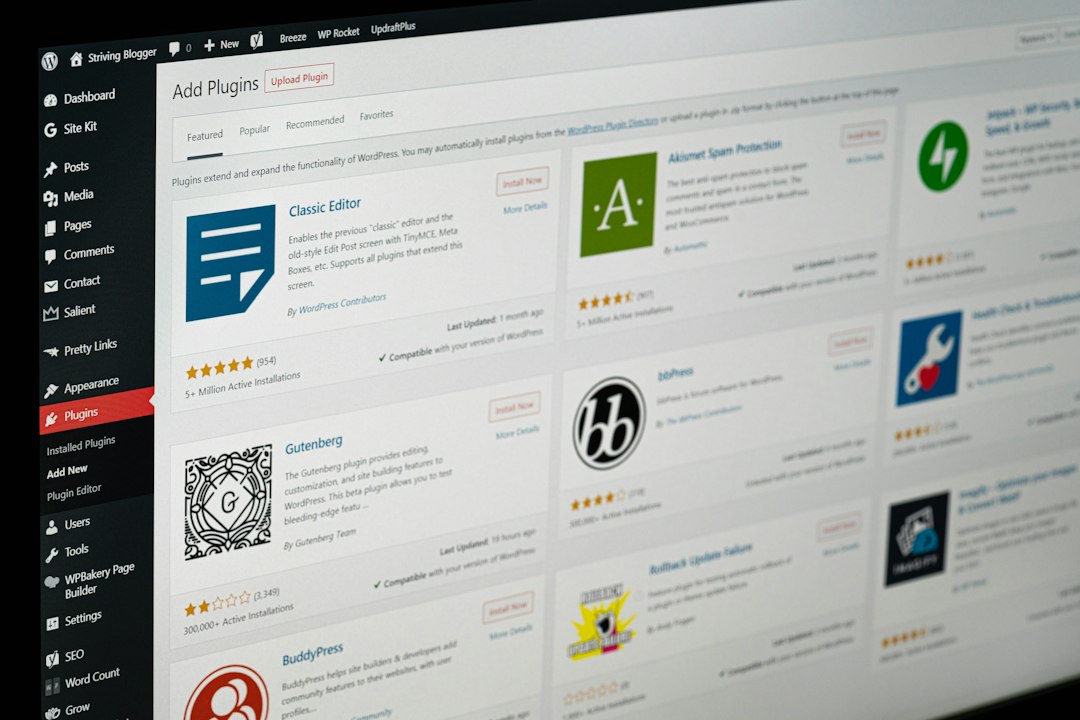
Reset your test tattoo studio site before you judge any booking plugin. A messy trial site can hide real problems, slow down admin screens, and leave old booking fields in your database. The WP Reset plugin has more than 400,000 active installations on WordPress.org, which makes it a common choice for cleaning up test sites fast [source: WordPress].
TLDR: If you tested three appointment booking plugins for a tattoo artist website, use WP Reset to roll the site back before choosing the final setup. For example, a studio that tested Amelia, Bookly, and Simply Schedule Appointments might end up with extra database tables, test clients, fake deposits, and broken calendar pages. A reset can cut cleanup time from 60 minutes to about 5 minutes, especially if you made a snapshot first. Always back up the site before touching the reset button.
Table of Contents
Why tattoo booking tests get messy fast
Tattoo appointment plugins are not small add-ons. They create booking pages, customer records, staff profiles, service categories, time slots, payment settings, reminder emails, and sometimes custom database tables.
That is fine during real use. It is annoying during testing.
You may test one plugin for flash day bookings, another for consultation requests, and another for deposits. After that, your WordPress admin can feel sticky. Menus remain. Shortcodes break. Calendar pages show blank blocks. Some plugins even leave settings behind after deletion. It drives me crazy that “delete plugin” often means “delete some of the plugin.”
What WP Reset actually does
WP Reset lets you reset a WordPress site without reinstalling WordPress by hand. For a tattoo artist website, that is useful when the site is still in staging or testing mode.
Its main job is to reset the WordPress database back to a clean state. That means it can remove posts, pages, plugin settings, users, theme settings, and other database content depending on the reset option you choose.
It does not magically design your site again. It is a reset tool, not a setup wizard. You still need to rebuild pages, menus, booking forms, and portfolio layouts after the reset.
Before you reset: do these first
- Confirm it is a staging site. Do not reset a live studio site with real client bookings.
- Export appointment data. Save test notes if they helped you compare plugins.
- Back up the full site. Include files and the database.
- Write down the winner. Note which plugin had the best calendar, deposit flow, and email reminders.
- Save key pages. Copy the text for pages like “Book a Consultation” and “Aftercare.”
Expect to waste time if you skip this. One forgotten deposit setting can send you back into plugin menus for another 20 minutes.
The safe way to reset after booking plugin tests
- Install WP Reset from the WordPress plugin directory.
- Create a snapshot before making changes. This gives you a restore point if you panic five seconds later.
- Review what will be removed. Read the reset screen carefully. Slow down here.
- Run the reset only when you are sure the test data can go.
- Reactivate your chosen theme and only the booking plugin you plan to keep.
- Rebuild booking pages with clean shortcodes or blocks.
- Test the booking flow as a client, artist, and admin.
What to test after the reset
A clean site is the best time to test the final booking path. Keep it simple. Pretend you are a client booking a small tattoo consultation.
- Can the client pick an artist?
- Can they choose a service, such as consultation, touch up, or full day session?
- Does the calendar block unavailable time?
- Does the confirmation email arrive?
- Does the admin email show enough detail?
- Does the deposit or payment step work?
- Does it look good on mobile?
Mobile matters a lot. Many people book tattoos from Instagram links. If the form takes 18 taps and three page loads, some will quit. Keep the flow tight.
When not to use WP Reset
Do not use WP Reset on a live tattoo studio website unless you fully understand what will be removed. If your site has real tattoo inquiries, gift card orders, waiver forms, or active appointments, stop. Use a staging copy instead.
Also be careful if your booking plugin stores uploaded reference images. Clients may upload sleeve ideas, cover up photos, or placement examples. Make sure those files are backed up before cleaning the site.
A better workflow for future plugin tests
The best reset is the one you barely need. Next time, create a clean staging site first. Install WP Reset. Take a snapshot. Then test one booking plugin at a time.
Use a simple scorecard:
- Setup time: How many minutes until the first test booking?
- Artist schedules: Can each artist set different hours?
- Deposits: Are payments clear and easy?
- Client experience: Is the form short?
- Admin cleanup: Does uninstalling leave junk behind?
Give each item a score from 1 to 5. A plugin that looks pretty but takes 45 minutes to set up a basic consultation form may not be the right fit for a busy shop.
Final cleanup checklist
- Delete unused booking plugins.
- Keep only one calendar system active.
- Remove test pages and fake services.
- Set correct studio hours.
- Test email notifications.
- Check payment settings with a small test transaction.
- Make a fresh backup after the final setup.
WP Reset is best used as a cleanup tool for staging and test sites. For tattoo studios, it keeps plugin testing from turning into a weird pile of old calendars, fake clients, and broken booking forms. Use it before the final build, not after real clients start booking.