

The DualSense controller, Sony’s innovative gamepad designed for the PlayStation 5, is quickly gaining traction among PC gamers due to its comfortable ergonomics, advanced haptics, and adaptive triggers. However, users diving into classic games like Assassin’s Creed IV: Black Flag on PC might encounter an unexpected challenge — the DualSense controller doesn’t work as expected. If you’ve plugged in your controller only to find that the game doesn’t recognize it, you’re not alone.
Table of Contents
TL;DR
If your DualSense controller isn’t working in AC Black Flag on PC, it’s usually due to the game’s limited native controller support, which is optimized mainly for Xbox gamepads. To fix it, use Steam’s controller configuration settings, or try software like DS4Windows or DualSenseX. With the right configuration, you can enjoy smooth sailing once again as Edward Kenway without ditching your favorite controller.
Why AC Black Flag Doesn’t Recognize the DualSense Controller
Ubisoft launched Assassin’s Creed IV: Black Flag in 2013, well before the DualSense was even a concept. Naturally, the game’s out-of-the-box controller support is tailored for Xbox 360 and Xbox One controllers, which were standard for PC at the time. Any non-XInput device, including Sony’s DualShock 4 and DualSense, isn’t natively supported in many older PC titles.
The DualSense controller uses DirectInput rather than XInput — the API Microsoft uses for Xbox controllers — which means many older PC games cannot detect its inputs unless a workaround is applied.
Common Signs That Your DualSense Controller Isn’t Working Properly
- Game doesn’t react to any controller inputs.
- Menu navigation is unresponsive.
- Incorrect button mapping (e.g., pressing “X” results in a different, unintended action).
- Controller appears in Windows settings but not in-game.
Fortunately, there are several solutions to get your DualSense working seamlessly with AC Black Flag on PC. Let’s walk through the most effective ones.
Method 1: Steam Big Picture Mode Configuration
If you own AC Black Flag on Steam, you’re in luck. Steam provides extensive support for a variety of controllers, including the DualSense. Here’s how to enable it:
- Open Steam and click the gear icon in the top-right to access Settings.
- Navigate to Controller > General Controller Settings.
- Enable the checkbox for PlayStation Configuration Support.
- Connect your DualSense via USB (recommended for better compatibility) or Bluetooth.
- Launch AC Black Flag through Steam in Big Picture Mode for best results.
Steam now automatically remaps your controller to emulate an Xbox device, making the game think you’re playing with an Xbox controller. It may also display Xbox button prompts, which can be a bit confusing, but all controls will work as expected.
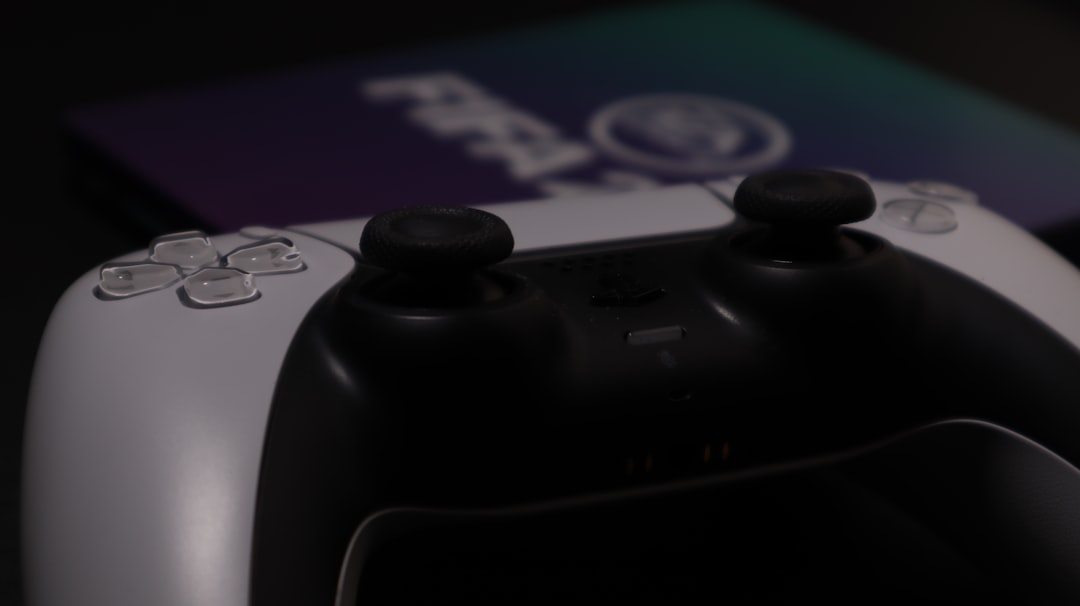
Method 2: Use DS4Windows (For Non-Steam Versions)
If you own the game through Ubisoft Connect or Epic Games, Steam’s backend features won’t be available. In this case, DS4Windows can be your best friend:
- Download DS4Windows from its official site or GitHub repository.
- Install and run the program.
- It will detect your DualSense controller and emulate an Xbox 360 controller using XInput.
- Make sure the status in DS4Windows reads “Controller 1: Connected.”
- Launch the game and test controller input.
DS4Windows also allows you to remap buttons, set up profiles, and even use the touchpad or gyro functionality in other games. While Black Flag doesn’t take advantage of these features, the program ensures general functionality is retained.
Method 3: DualSenseX — A New Modern Alternative
DualSenseX is another excellent and more modern tool for mapping your DualSense to work with non-Steam PC games. It offers easy-to-use UI and is built to offer better support for adaptive triggers and haptic feedback — though these enhancements don’t apply to older titles like Black Flag.
- Download DualSenseX from its official website.
- Install and connect your controller (USB preferred).
- Configure “Gamepad Emulation Mode” to Xbox 360 or Xbox One.
- Launch the game. It should now detect your controller.
This solution can be more user-friendly than DS4Windows, especially for newer users not familiar with manual config files.
In-Game UI and Button Icons
A small caveat when using emulation tools: You’ll see Xbox button prompts in-game. That means your [X] circle, square, and triangle buttons will all show as [A], [B], [X], and [Y] as per Xbox layouts. Sadly, most legacy PC ports don’t allow swapping or customizing button icons unless you install mods.
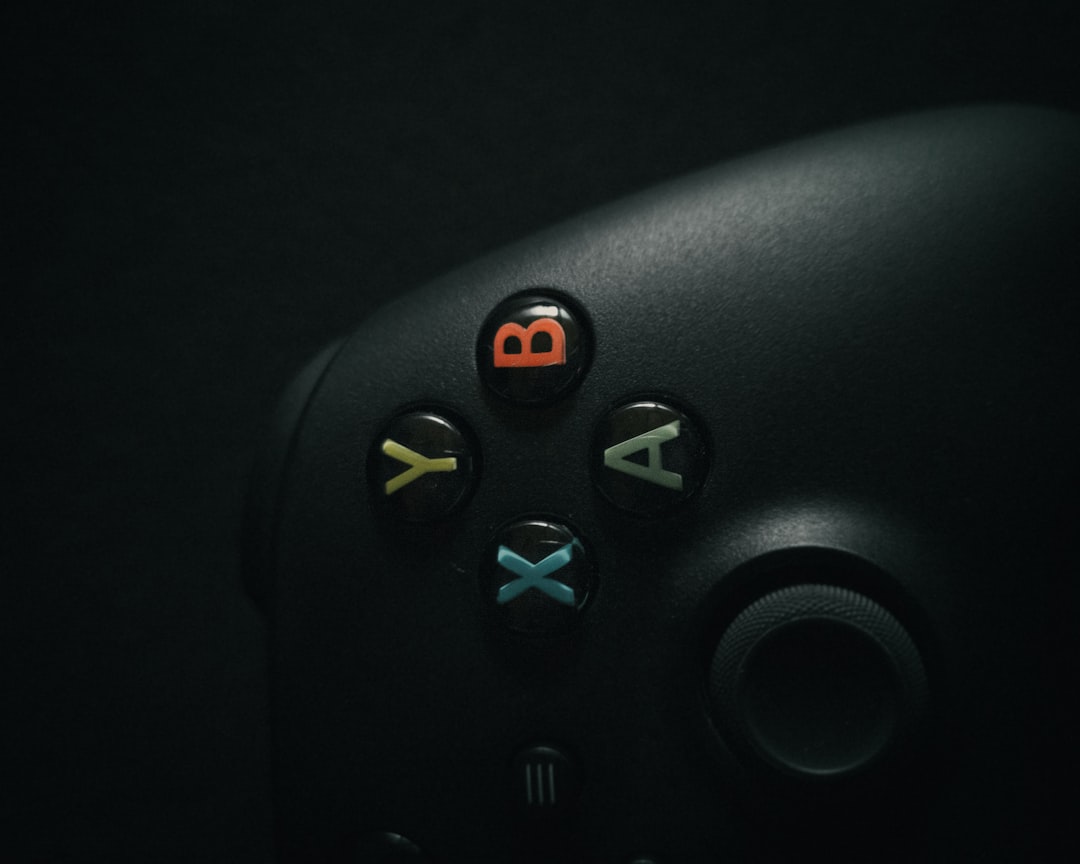
If you’re concerned about immersion or just prefer matching layouts, there are community-made mods and texture packs that replace in-game UI icons with PlayStation-style ones, but these may require manual installation and can sometimes create compatibility issues.
Troubleshooting: Still Not Working?
Double-check these points if your controller still isn’t detected:
- You’re not launching the game through Steam’s Big Picture Mode (if using Steam).
- Controller is connected wirelessly, and Bluetooth drivers might conflict.
- Another input device (an old gamepad, joystick, or HOTAS) might be interfering.
- USB-C cable used for connection might not support data transmission (charge-only cables are common issues).
Try disconnecting other controllers, reconnecting your DualSense, and restarting the game. If nothing works, test the controller with another game to confirm that it’s functioning properly in general.
Why Use DualSense on PC Anyway?
While configuring it takes a little extra work, the DualSense offers a distinctly premium experience — even on PC:
- Ergonomic design feels comfortable during long sessions.
- Advanced haptics and triggers (in supported titles).
- Built-in touchpad and motion controls.
While Black Flag doesn’t use all these features, having a familiar and comfortable controller is reason enough to want it working properly.
Horizon on the Horizon: The Future of DualSense Support on PC
With Sony releasing more titles on PC and the popularity of the DualSense growing, future support may become even more streamlined. Recent Ubisoft games already have native compatibility with Sony gamepads. It’s possible a future update or modded patch could add improved compatibility for older titles like AC Black Flag, but until then, using emulation or Steam’s built-in features remains the best workaround.
Final Thoughts
The DualSense controller may not work out-of-the-box with Assassin’s Creed IV: Black Flag, but with a few tweaks and the right tools, you can effortlessly command Edward Kenway through shanty-filled seas and hidden coves. Though the setup requires a bit of technical know-how, the reward is worth it — you get to enjoy one of the most beloved games in the Assassin’s Creed franchise with modern hardware and all the comfort it brings.
Whether you play through Steam or another platform, these solutions should help you get your controller working so you can focus on plundering, sailing, and parkouring with style.